

Jump to section
Try OnTheClock Free
Save time and make payroll effortless with our easy-to-use, affordable employee time tracking app.
Try It FreeKey Takeaways
- ✔The best time clock software for nursing tracks every shift appropriately the first time, so hours flow into payroll without anyone fixing them by hand.
- ✔No single tool wins for every setting. Home health care needs GPS and a separate compliant EVV solution when required, nursing homes need overtime and buddy punching controls, and hospital units need deep shift scheduling.
- ✔OnTheClock is the best overall pick for most nursing teams because of its mobile and kiosk punches, optional fingerprint verification, GPS, scheduling, and payroll integrations at $5/month base plus $4 per user.
- ✔A regular time clock will not make a Medicaid home health agency EVV-compliant on its own. That takes a state-approved system.
- ✔Watch the labor law traps that cost nursing employers the most: the 8 and 80 overtime rule, shift differentials in the overtime rate, and auto-deducted meal breaks.
The best time clock software for nursing is the one that captures every shift correctly the first time, so the hours move into payroll clean. That sounds simple. For a nursing team, it almost never is.
Picture a director of nursing closing a two-week pay period. Overnight shifts that cross midnight, and weekend differentials on half of them. One nurse's lunch got interrupted by a code, so the auto-deducted 30 minutes was never really a break. The clock says one thing, the schedule says another, and now someone is fixing it line by line before anyone gets paid. That's the real job. Not "tracking time." Keeping the hours honest across a workforce that never clocks out for the night.
Nurses don't work nine to five. They work 24/7, across shifts, sites, and pay rules that bend depending on where you stand. So the right tool shifts, too.
Below, we break down the best pick for each nursing setting and need.
What Nursing Teams Actually Want
Nursing teams want to trust the hours. That's the whole thing.
They want a clock that handles a 7 p.m. to 7 a.m. shift without choking on midnight, automatically applies the night differential, and flags overtime before it becomes a surprise. They want to stay on the right side of labor law because the U.S. Department of Labor doesn't accept "the system glitched" as a defense. For home health and visiting nurses, they want proof a caregiver was at the right address at the right time. A facility group wants a single view across all buildings.
Underneath all of it sits one need: Get the hours right so payroll runs clean and nobody gets shorted. The right pick shifts with your setting. A home health agency lives or dies on mobile GPS and EVV. A nursing home cares most about overtime control and stopping buddy punching at shift change. A hospital unit needs a scheduler that can juggle rotations and swaps. That's why there's no single winner here, only the best one for each. If you want the broader picture first, our guide to time tracking for health care covers the fundamentals.
Quick Picks: The Best Time Clock Software for Nursing at a Glance
-
OnTheClock: Best overall for nursing teams
-
Connecteam: Best for home health and visiting nurses
-
When I Work: Best for hospital and clinic scheduling
-
Buddy Punch: Best for stopping buddy punching
-
Jibble: Best free option for tight budgets
-
Deputy: Best for labor-law compliance and fatigue
-
Smartlinx: Best for multifacility nursing homes
-
QuickBooks Time: Best for clinics on QuickBooks payroll
-
Homebase: Best free pick for one location
How We Evaluated the Best Time Clock Software for Nursing
We compared every option against the OnTheClock Nursing Time Clock Checklist: The things nursing operations actually need from a clock, not the longest feature sheet. Plenty of features look impressive in a demo and change nothing on a real floor. We measured the ones that move the needle.
To get there, we read real buyer reviews on G2, Capterra, and Software Advice, pulled current pricing and features from each vendor's own site, and mapped the compliance criteria to U.S. Department of Labor guidance. Here's what we compared each tool against:
-
24/7 and overnight shift handling: Hospitals and nursing homes never close, so the clock has to handle shifts that cross midnight, rotate, and run on-call.
-
Shift differentials done right: Verify that the system supports night and weekend rates and includes applicable differentials in the regular rate for overtime (29 CFR 778.207(b)).
-
Overtime and the 8 and 80 rule: Qualifying hospitals and residential care establishments may use the FLSA "8 and 80" system, with the required prior agreement and overtime calculations for hours over eight per workday and 80 per fixed 14-day period (29 CFR 778.601).
-
Meal and break tracking: Unpaid meals generally require full relief from duties; interrupted meal periods may be compensable (DOL Fact Sheet #53). Easy overrides matter.
-
EVV support for Medicaid home health: The 21st Century Cures Act requires Electronic Visit Verification for Medicaid-funded home care. A clock has to feed a state-approved system to count.
-
GPS and mobile clock-in: Visiting nurses need to punch in from a patient's home and record the location of the punch.
-
Multilocation support: Facility groups and clinic chains need per-site schedules and one consolidated report.
-
Buddy punching controls: Biometric, PIN, photo, or facial recognition features that help deter one employee from clocking in for another.
-
PTO and accrual tracking: Sick, vacation, and holiday balances that update when time off is approved.
-
Payroll integrations: Named connections to ADP, QuickBooks, Gusto, and Paychex to prevent hours from being rekeyed.
OnTheClock earns the "best overall" label on breadth and value, and it's worth being precise about what that means. It doesn't win every slot below. Connecteam specializes in mobile teams and offers a HIPAA-support pathway for eligible customers; When I Work beats it on pure scheduling; Buddy Punch is better with punch verification; and Smartlinx edges it out on enterprise facility reporting. What OnTheClock does is cover more of the full checklist than any other single tool: optional fingerprint verification, GPS, geofencing, scheduling, configurable overtime, PTO, and four named payroll integrations, at a flat $5 base plus $4 per user, which is competitive for smaller teams. For the buyer who wants one affordable clock that does most of the job well rather than one specialist tool that does a single thing best, it's the strongest starting point. The specialists earn their slots precisely because they beat it on their one thing, which is why this isn't a list with one tool on top. For the full background, see our health care time tracking guide.
Pro Tip: Before you compare a single feature, write down which of the three settings you're in: home health, facilities, or hospital units. That one decision rules out half this list and saves you from buying a tool built for someone else's problem.
The Best Time Clock Software for Nursing
Below, we list the best time clock software for nursing, with the right pick for each situation. For each one, we cover who it fits best, where it stands out, and where it may not be the right move.

OnTheClock: Best Overall for Nursing Teams
Available on: Web, iOS, Android
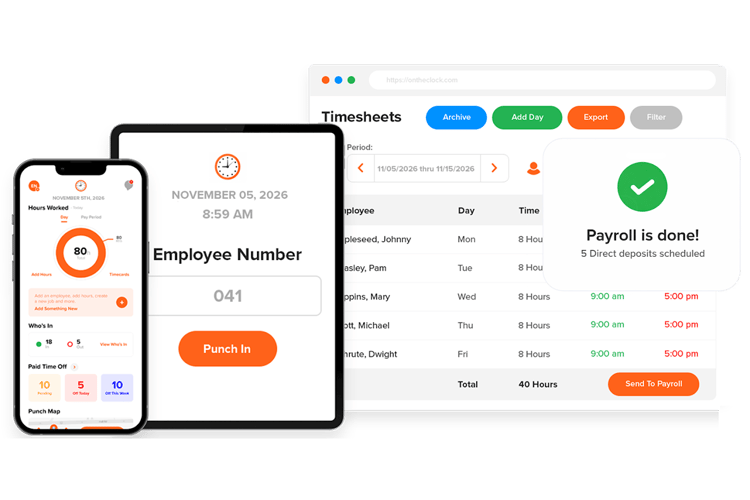
For most nursing teams, OnTheClock is the best overall pick because it covers the widest span of what you actually need at predictable monthly pricing. It's a time clock built for hourly and shift-based teams with features such as optional fingerprint verification, GPS, scheduling, configurable overtime rules, and payroll integrations in one place. Small-to-mid nursing homes, assisted living facilities, and multilocation clinic groups are the sweet spot.
Why OnTheClock Is Best for Nursing Teams
Nursing runs on accurate hours, and OnTheClock helps capture them in reviewable timecards. Staff can clock in from a phone, shared tablet kiosk, or supported fingerprint reader, with GPS location and IP-based restrictions available to support punch review. The overtime engine offers configurable daily and weekly rules, including state overtime settings. Qualifying hospitals and residential care establishments using a fixed 14-day 8-and-80 overtime system must confirm support for both daily and 14-day calculations with OnTheClock before relying on it. Configurable break rules and payroll integrations help reduce manual work, but employers remain responsible for reviewing all compensable time, differential pay, and overtime calculations.
The price is the other half of the story. OnTheClock costs $5 per month base plus $4 per employee per month, and it offers a 30-day free trial with no credit card required. There is no permanent free plan; monthly time tracking starts at the listed price. For a 12-person clinic, that's $53 a month. Compared to enterprise platforms that quote four figures before they'll show you a demo, the math is hard to argue with.
What Makes It Different for Nursing?
Most time clocks make you choose between simple and capable. OnTheClock refuses the trade. Setup is designed to be straightforward for small teams, with timing depending on configuration and onboarding, yet you still get biometric fingerprint punching, geofencing, group punch for shift handoffs, PTO accrual, and a real scheduler underneath.
It also stays honest about money. OnTheClock is built in-house and takes no outside investment, which is why the pricing is a flat base plus per-user instead of a maze of tiers. Ask about the current pricing and supported hardware for optional fingerprint punching, or add full-service payroll if you want hours and paychecks under one roof. Nothing is hidden behind a "contact sales" wall.
Picture an assisted living facility with three buildings and 40 aides. A shared tablet at each entrance runs in kiosk mode, a supported fingerprint reader can help deter buddy punching at the 7 a.m. handoff, GPS records where float staff members punch in and out, and Friday payroll exports to ADP can reduce manual reentry. That helps keep timekeeping and payroll more manageable. It's one of the strongest mobile time clock apps for teams that just need accurate hours.
Ready to see it on your own floor? Start tracking time free for 30 days, no credit card is required.
Key Features
Top Integrations
Pros
Cons
Pricing
- 30-day free trial, no credit card required at sign-up
- $5 per month base plus $4 per employee per month
- Optional full-service payroll: $40/month base plus $6 per employee/month, with a one-time $250 implementation fee
- Optional fingerprint punching: confirm current hardware and add-on pricing

Connecteam: Best for Home Health and Visiting Nurses
Available on: Web, iOS, Android
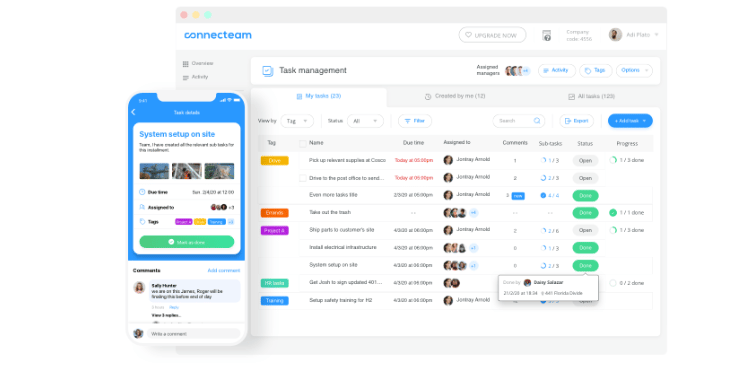
For home health and visiting nurse teams, Connecteam is the best fit because it brings the clock, schedule, visit checklists, and team chat into one mobile app, and offers a HIPAA-support pathway for eligible customers. Caregiver teams of under 30 people tend to get the most out of it.
Connecteam was built for deskless frontline staff, such as home health aides. A nurse can clock in from a patient's home, use GPS-enabled punch records and configured geofences to help document device location, complete a visit checklist, and message the office. Connecteam publishes SOC 2 Type 2 and ISO 27001 security information and offers a Business Associate Agreement (BAA) process for eligible customers. Required agreements, account registration, configuration, and safeguards must be in place before using supported workflows with protected health information. GPS punches and visit forms do not by themselves satisfy Medicaid EVV; agencies should verify state-approved EVV solutions or integrations.
It fits best when the team is small and mobile, and you want one tool instead of five. A 15-aide agency can schedule visits, capture clean hours, document care, and keep everyone in the loop on one screen. Where it strains is scale and connectivity. Confirm offline punching and later synchronization before using it in rural areas, and the per-hub pricing gets confusing fast as you add features.
Key Features
Top Integrations
Pros
Cons
Pricing
- Free for up to 10 users; 14-day trial on paid plans
- Operations Basic $35/month; Advanced $59/month; Expert $119/month for the first 30 users. Additional users and separately purchased hubs may cost more

When I Work: Best for Hospital and Clinic Scheduling
Available on: Web, iOS, Android
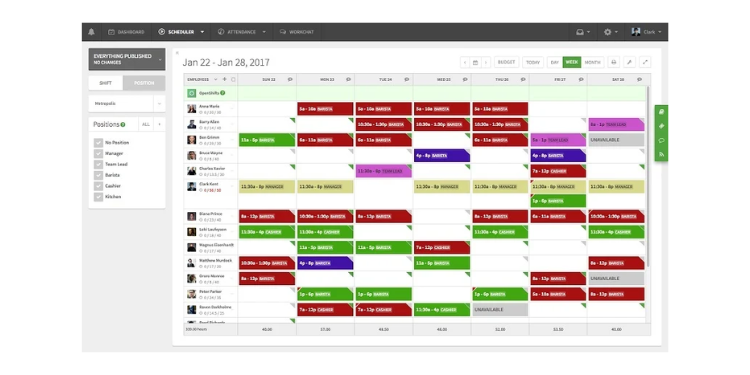
When I Work is the best pick for hospital units and clinics where scheduling is the hard part. Rotating shifts, open-shift pickups, swaps, and availability all live in one clean system, with the time clock built right in.
If your real problem is coverage, this is the tool. A charge nurse can post open shifts, approve swaps, and see who's available without a string of group texts, and staff clock in against the schedule they already see on their phones. Every plan includes scheduling, attendance, and team messaging, and it integrates with nine payroll systems, including ADP, QuickBooks Online, Gusto, and Paychex. Pricing starts at $2.50 per user per month for a single location, which is genuinely cheap for what the scheduler does.
The catch is the time tracking side. When I Work's timecard and reporting tools are lighter than its scheduling tools, and buyers should confirm their final checkout total with time tracking enabled before they budget. It also doesn't offer a biometric clock-in. For a unit drowning in schedule chaos, those are fair trades. For a facility whose main worry is buddy punching, look elsewhere on this list.
Key Features
Top Integrations
Pros
Cons
Pricing
- 14-day free trial, no credit card
- Essentials $2.50/user/month; Pro $5/user/month; Premium $8/user/month. Confirm checkout with time tracking enabled

Buddy Punch: Best for Stopping Buddy Punching
Available on: Web, iOS, Android
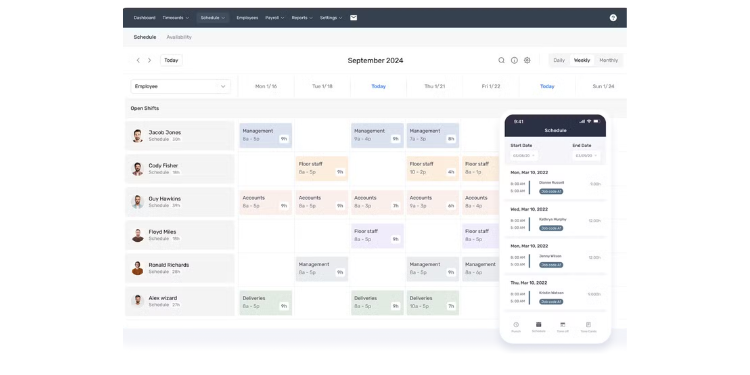
When the core pain is one nurse clocking in for another, Buddy Punch is the most direct fix. The name says it all. It offers six ways to verify a punch, more than almost any competitor, including supported facial verification and webcam photos on eligible plans.
Shift handoffs in a busy facility are where time theft hides. Buddy Punch offers several punch-verification options, including Face ID, GPS coordinates, IP locking, PIN/kiosk punching, webcam photos, QR codes, and geofencing, with availability varying by plan. It also handles nursing-specific math well, with configurable time and break rules, PTO tracking, and overtime alerts; verify your specific differential calculations before implementation. Hours export to QuickBooks, ADP, Gusto, Paychex, Paylocity, and Workday.
One honest caution for health care buyers: Organizations handling protected health information should confirm whether Buddy Punch offers an appropriate BAA and safeguards before storing such information in the tool. The pricing also carries a flat $19 monthly base fee on every plan, which stings at small headcounts. At standard monthly Starter pricing, three users would cost $36.97/month and 10 users would cost $78.90/month, including the base fee.
Key Features
Top Integrations
Pros
Cons
Pricing
- 14-day free trial
- $19/month base plus Starter $5.99/user/month; Pro $7.99/user/month; Advanced $13.99/user/month (confirm current checkout rates)

Jibble: Best Free Option for Tight Budgets
Available on: Web, iOS, Android
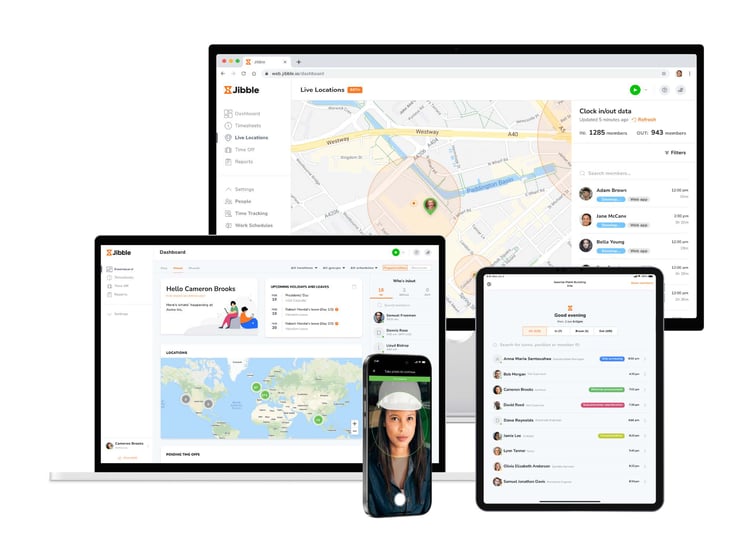
For a budget-strapped home care or visiting nurse team, Jibble is the best free option. The free plan is free forever for unlimited users and still includes GPS, facial recognition, PTO, and offline mode.
That feature set at zero cost is rare. A small agency can put GPS punch-location records and facial-recognition clock-in on every aide's phone without paying a cent. The offline mode is the part that field teams will care about most: A clock-in in a rural dead zone still records and syncs once the signal comes back, so a missed bar of service doesn't become a missed paycheck. It tracks overtime, paid and unpaid breaks, and PTO, and exports it all to QuickBooks, Gusto, and ADP.
Two cautions, though. Reviewers report occasional app glitches, which matters when payroll rides on a clean punch. And here's the one that trips up home health agencies: Jibble's GPS time tracking does not establish state Medicaid EVV compliance. A Medicaid agency cannot treat it as a compliance solution in and of itself. As a free, capable GPS time clock, it's still tough to beat.
Key Features
Top Integrations
Pros
Cons
Pricing
- Free forever for unlimited users
- Free $0; Essential $3.49/user/month; Growth $5.99/user/month; Pro $10.99/user/month (U.S. monthly rates, excluding tax)

Deputy: Best for Labor-Law Compliance and Fatigue
Available on: Web, iOS, Android
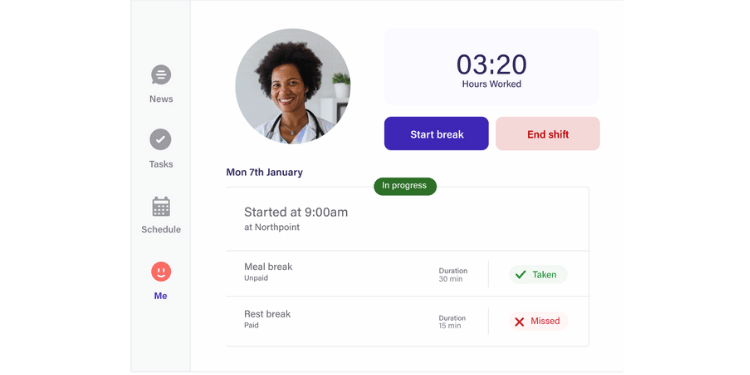
Deputy is the strongest pick for mid-sized to large hospitals and clinic groups that need labor law compliance built into the schedule. It goes further than most in covering the rules governing nursing hours, plus demand forecasting and fatigue tracking.
This is the tool for a group big enough that compliance mistakes get expensive. Deputy builds break rules, rest periods, and audit logs into scheduling, forecasts staffing demand, and flags fatigue risk from long or stacked shifts, which matters because nursing research (Scott et al., American Journal of Critical Care, 2006) found error risk nearly doubled on shifts of 12.5 hours or more. Staff clocks in by app, web, or kiosk with touchless facial recognition on higher tiers, and hours flow to ADP, QuickBooks, Gusto, and Xero.
Two cautions. Healthcare organizations should confirm Deputy's current security arrangements and BAA availability before handling protected health information. And the cost climbs as you grow, with recent price increases and a $30 monthly minimum. Lite includes core scheduling and time tracking at $5/user/month; Core is $6.50 and Pro $9/user/month. For a compliance-focused group, the depth earns its keep.
Key Features
Top Integrations
Pros
Cons
Pricing
- Free trial available; confirm current trial length
- Lite $5/user/month; Core $6.50/user/month; Pro $9/user/month; $30 monthly minimum

Smartlinx: Best for Multifacility Nursing Homes
Available on: Web, iOS, Android
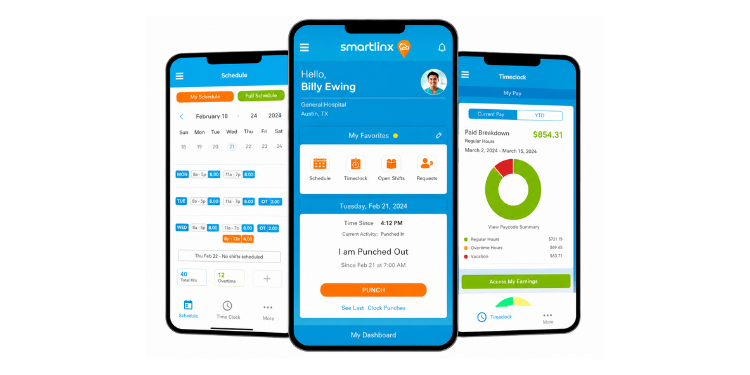
For a multifacility nursing home or senior care group, Smartlinx is the best fit because it's purpose-built for exactly that world. It's the rare workforce platform designed around skilled nursing and post-acute care with PBJ reporting for CMS baked in.
Most tools on this list are adapted for nursing. Smartlinx was made for it. The platform runs an auto-scheduler tuned for around-the-clock care, predicts overtime before it lands, supports biometric and QR kiosk punching, and offers Payroll-Based Journal (PBJ) reporting tools to support the CMS staffing-reporting requirements for skilled nursing facilities. Across a group of buildings, that single-purpose focus saves real labor cost and reporting headaches.
The trade-offs are enterprise trade-offs. Smartlinx is quote-only, with no public pricing, so budgeting means a sales call. Reviewers note that PBJ calculations can glitch and that ad-hoc reports are hard to pull. And it's heavier than a small practice needs. But, for a facility group whose compliance and scheduling complexity has outgrown a simple clock, it's built for the job.
Key Features
Top Integrations
Pros
Cons
Pricing
- Custom quote; no public pricing
- Contact Smartlinx for a custom estimate

QuickBooks Time: Best for Clinics on QuickBooks Payroll
Available on: Web, iOS, Android
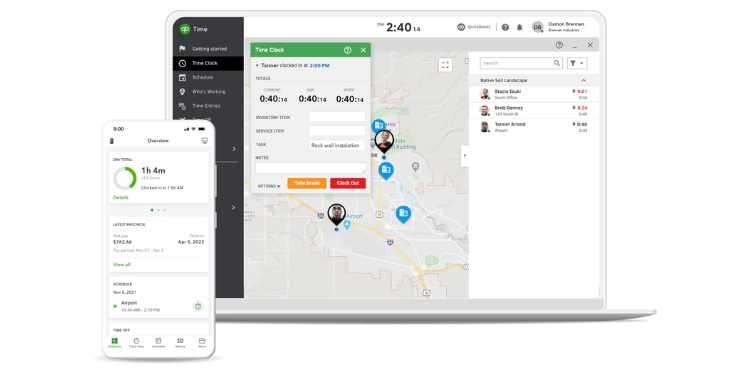
Already run payroll through QuickBooks? Then QuickBooks Time is the natural pick. The integration is the tightest on this list, and the GPS and offline tracking are strong.
For a practice living inside the QuickBooks ecosystem, hours move into payroll with almost no friction. That removes a whole category of manual rekeying. Staff clock in via app, web, or kiosk; GPS tracking is available through the mobile app, while geofencing is included with Elite; and PTO and overtime are tracked cleanly. For a QuickBooks shop, that one integration can outweigh everything else on this page.
The price runs high, though. Premium is $10 per user per month plus a $20 monthly base fee, while Elite is $12 per user per month plus a $40 monthly base fee. QuickBooks Time also requires a QuickBooks Online account, so businesses that don't already use QuickBooks should factor that subscription into the total cost.
One thing to keep in mind is that Intuit regularly raises its prices. Reviewers also flag that scheduling and time tracking aren't tightly linked and that missed-punch alerts can be unreliable, the same reconciliation pain that tops the complaint list industry-wide. It's worth it if you're on QuickBooks and hard to justify if you're not.
Key Features
Top Integrations
Pros
Cons
Pricing
- A 30-day free trial
- Premium: $10 per user per month plus $20 base; Elite: $12 per user per month plus $40 base

Homebase: Best Free Pick for One Location
Available on: Web, iOS, Android
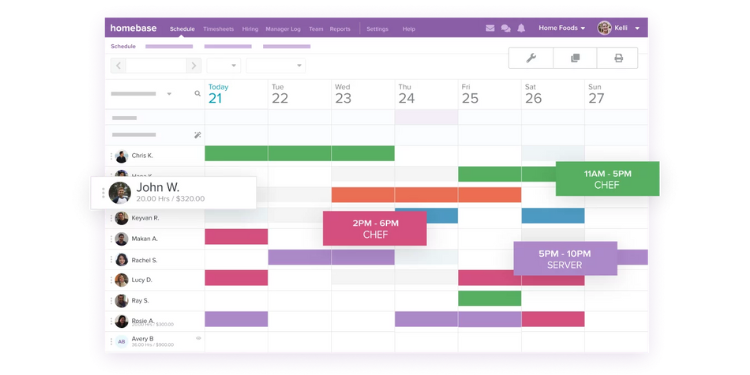
Run one location with a handful of staff? Homebase is the best free pick for you. A single location with up to 10 employees gets clock-in and basic scheduling at no cost with offline punch support built in.
A small dental office, vet clinic, or family medicine practice can run its whole front desk on the free tier. Employees clock in, the schedule's built, and punches are stored and forwarded even if the Wi-Fi drops. Paid tiers include photo-on-punch, geofencing, and Fair Workweek compliance tools, with payroll available as an add-on.
Then, you add a second building, and the model breaks. Homebase prices per location, so a multisite group pays again for every site, and the cost climbs quickly. The geofencing is limited to radius presets, there's no facial recognition, and rotating nurse schedules feel less graceful here than in a scheduling-first tool. For one location and a tight budget, though, the free plan is genuinely useful.
Key Features
Top Integrations
Pros
Cons
Pricing
- Free for one location, up to 10 employees
- Essentials $30/location/month; Plus $70/location/month; All-in-One $120/location/month. Optional payroll: $49/month base plus $6/employee paid
Side-by-Side Comparison
| Tool | Best For | Pricing | Key Strengths | Top Integrations |
|---|---|---|---|---|
| OnTheClock | Best overall for nursing | $5 base + $4/user/month | GPS, optional fingerprint, affordable pricing | QuickBooks, ADP, Gusto, Paychex |
| Connecteam | Home health and visiting nurses | Free up to 10; Operations Basic $35/month for first 30 users | Mobile tools; HIPAA support for eligible accounts | QuickBooks, Gusto, Paychex |
| When I Work | Hospital and clinic scheduling | From $2.50/user/month | Shift scheduling, swaps, low entry price | ADP, QuickBooks, Gusto, Paychex |
| Buddy Punch | Stopping buddy punching | Starter $5.99/user/month + $19 base | Facial recognition, six punch methods | QuickBooks, ADP, Gusto, Workday |
| Jibble | Tight budgets | Free; Essential $3.49/user/month | Free GPS and facial recognition, offline | QuickBooks, Gusto, ADP |
| Deputy | Compliance and fatigue | Lite $5/user/month; Core $6.50/user/month; Pro $9/user/month; $30 monthly minimum | Labor-law tools, forecasting | ADP, QuickBooks, Gusto, Xero |
| Smartlinx | Multifacility nursing homes | Custom quote | Purpose-built SNF, PBJ for CMS | Viventium, major HCM systems |
| QuickBooks Time | Clinics on QuickBooks | $10/user + $20 base | Tight QuickBooks tie, strong GPS | QuickBooks (native) |
| Homebase | Single-location clinics | Free up to 10 at one location; Essentials $30/location/month | Free single-location clock | Homebase Payroll, Gusto, ADP |
Pricing and feature information reviewed October 2026 against available vendor documentation. Prices reflect standard month-to-month subscriptions where verified; confirm plan-specific limitations and fees with providers.
Pro Tip: Watch the base fees and per-location pricing. A $5.99 per-user plan with a $19 monthly base costs a five-person team more per head than a flat $5 plus $4 plan. Always run the math for your real headcount and number of sites before you decide.
What's the Best Time Clock Software for Nursing?
The best time clock for nursing isn't the one with the longest feature list; it's the one that fixes the friction in the setting you actually work in.
Start with one question: What breaks most often right now? Many buyers shop for features they might need someday and end up with something heavier than their team will use. Focus on your real bottleneck instead. Three quick questions point most teams to the right pick:
- Do your nurses drive to patients' homes? If so, then mobile GPS is non-negotiable. And, if you bill Medicaid, you need EVV support. Look for a state-approved EVV solution; a general mobile time clock such as Connecteam is not sufficient on its own. For related options, see a dedicated EVV system.
- Do you run multiple buildings or a facility group? Then multilocation reporting and overtime control matter most. OnTheClock fits small to mid-sized groups; Smartlinx fits larger senior care operations.
- Is your hardest problem just covering shifts? Then, a scheduling-first tool like When I Work will save you the most time.
Your answer points to your pick. Match the tool to the problem you hit most, not the longest feature list, and payroll preparation stops being a fight.
What Is Time Clock Software for Nursing?
Time clock software for nursing is a digital system that records when nurses and care staff start and end their shifts, then converts those punches into payroll-ready hours. Instead of paper cards or a spreadsheet, staff clock in by phone, tablet kiosk, or biometric reader.
For nursing, it does more than stamp a time. It applies shift differentials, calculates overtime under health care-specific rules, tracks breaks, and often handles scheduling and PTO in the same place. The goal is simple: accurate hours, clean payroll, and a record that holds up if the Department of Labor ever asks.
Who Needs Time Clock Software for Nursing?
Any nursing operation that pays hourly staff needs it, but the urgency rises with size and complexity. Home health agencies need it to prove visits and bill correctly. Nursing homes and assisted living facilities need it to control overtime and stop buddy punching across shifts.
Hospital units and outpatient clinics need it to manage rotating schedules and maintain tight coverage. Even a small dental or family practice with five employees benefits, because manual time tracking quietly leaks money through rounding, missed punches, and payroll errors. If you pay by the hour, you need a reliable clock.
Why Nursing Teams Rely on Time Clock Software
Nursing teams rely on it because the alternative is expensive and risky. Hours that aren't tracked cleanly turn into payroll errors, and payroll errors in a 24/7 operation pile up fast across nights, weekends, and overtime.
The bigger risk is legal. Health care is a frequent target for wage-and-hour lawsuits, especially over unpaid or interrupted meal breaks: in Quay v. Monarch Healthcare Management, 786 nurses shared a $575,000 settlement over auto-deducted breaks. A clear, accurate time record is the best defense an employer has. Add the staffing reality, where short-handed units lean on overtime, and accurate tracking becomes a tool to protect both the budget and staff from burnout.
Key Features Time Clock Software for Nursing Should Have
The buyer's checklist for nursing is specific. Start here:
- 24/7 and overnight shift support that handles shifts crossing midnight
- Automatic shift differentials folded into the overtime rate
- FLSA overtime tools, including the 8 and 80 option for hospitals and residential care
- Break tracking with easy overrides for interrupted meals
- GPS and geofencing for visiting nurses
- Buddy punching prevention through biometrics, PIN, or photo
- Multilocation reporting for facility groups
- Payroll integrations with ADP, QuickBooks, Gusto, or Paychex
One feature deserves its own flag. EVV is not the same as a time clock. If you run Medicaid-funded home health, the 21st Century Cures Act requires Electronic Visit Verification, and a standard time clock alone will not make you compliant. It has to feed a state-approved EVV system. Don't assume GPS clock-in checks that box.
How to Choose the Right Time Clock Software for Nursing
Choosing the right time clock for a nursing operation isn't about picking the most popular brand; it's about matching the tool to how your team actually works, the rules you must follow, and the budget you must defend. Work through these steps in order, and the right pick usually becomes obvious by the end.
Step 1: Name your setting first
Before you compare a single feature, decide which nursing world you live in: home health and visiting nurses, a nursing home or assisted living facility, or a hospital or clinic unit. This one choice drives everything else. A home health agency lives on mobile GPS and EVV, while a facility cares about overtime control and stopping buddy punching at shift change, and a hospital unit needs a deep scheduler. The same tool that's perfect for one setting can be a poor fit for another, so don't shop a generic "best" list without filtering for your own world first.
Step 2: Check your Medicaid and EVV exposure
If you bill Medicaid for home or personal care, EVV is a legal requirement under the 21st Century Cures Act, not an optional feature. Figure out, right now, whether any of your revenue depends on Medicaid-funded visits. If it does, a regular time clock alone will not keep you compliant, and you'll need a tool that feeds your state's approved EVV aggregator or a dedicated EVV platform, in addition to your clock. Getting this wrong risks denied claims and clawbacks, so it belongs near the top of your checklist, not the bottom. If you serve zero Medicaid clients, you can treat EVV as a non-issue and focus on GPS punch-location records instead.
Step 3: Map your real labor-law rules
Nursing payroll is governed by rules that trip up generic time clocks. Qualifying hospitals and residential care establishments may elect the FLSA 8-and-80 system with the required prior agreement. Verify that the software handles both hours over eight in a day and 80 in a fixed 14-day period without double-counting overtime (29 CFR 778.601). Confirm the tool supports the employer's shift differentials and includes required differential pay in overtime calculations (29 CFR 778.207(b)). A tool that tracks the differential but excludes it from overtime math creates a liability. Check how it handles meal breaks, too, since unpaid meal periods generally require complete relief from duties, and employers need a way to record work during interrupted or missed meals. If your state adds its own daily overtime or break rules, like California's, verify the tool can apply those as well.
Step 4: Pressure-test the clock-in methods against your floor
Think about where and how your staff actually punches. Visiting nurses need a mobile app with GPS and offline support, because a clock-in that fails in a rural dead zone means a missed payroll record. A busy facility with crowded shift handoffs needs biometric, facial, or PIN verification to help deter buddy punching, since that's when it's most likely to occur. A clinic with a front desk might do fine with a shared tablet kiosk. List the punch methods you genuinely need, then rule out any tool that can't deliver them, rather than paying for verification features that don't match your environment.
Step 5: Confirm it talks to your payroll
The single most common complaint about time clock software is that the hours don't reconcile with payroll, forcing someone to manually fix them every pay period. Avoid that trap by confirming the tool integrates directly with your payroll provider, whether that's ADP, QuickBooks, Gusto, or Paychex, before you buy. Native integration means approved hours flow straight into paychecks with no rekeying, eliminating a whole category of errors and saving hours of admin time. If a tool only exports a spreadsheet you have to import manually, treat that as a real cost, not a minor inconvenience.
Step 6: Weigh HIPAA if you handle patient data
If your staff will discuss, store, or attach any protected health information in the time or scheduling tool, HIPAA compliance is required. Connecteam offers a HIPAA-support and BAA pathway for eligible customers. Assess each vendor's BAA availability, safeguards, and actual handling of protected health information. Decide whether you need patient information to live inside this system at all. If you do, screen for HIPAA compliance early, because it's a hard requirement you can't bolt on later, and choosing a noncompliant tool can expose you to serious penalties.
Step 7: Do the honest budget math
Look past the headline per-user price and calculate the real monthly cost for your actual headcount. Watch for flat base fees that hit small teams hard, like Buddy Punch's $19 monthly base, and for per-location pricing that multiplies across a facility group, like Homebase's model. Factor in add-ons, too, since GPS, scheduling, or payroll may be paid extras rather than included features. A tool that looks cheap per-user can cost more than a flat-rate option once you add it all up, so run the numbers for your team size, your number of sites, and the features you'll truly use.
Step 8: Run a real trial before you commit
Almost every tool here offers a free trial or free plan, so use it with your actual team, not just a demo account. Have real nurses clock in and out across a real shift, including an overnight if you run them, and then run a mock payroll to see whether the hours come through clean. Pay attention to whether missed punch alerts actually fire, whether corrections are easy to make and stick, and whether your staff finds the app intuitive without training. The tool that survives contact with your real floor, not the one with the best feature sheet, is the right choice.
Tips for Implementing Time Clock Software for Nursing
A good rollout is the difference between a tool your staff uses and one they fight. A few tips make it stick:
- Start with a pilot shift. Roll the clock out to one unit or one building before going facility-wide. You'll catch the GPS dead zones, the kiosk placement problems, and the confusing settings on a small scale, where fixing them is cheap and low stakes.
- Train for the night shift too. Day staff usually receives hands-on training, and overnight staff receives an email. Don't do that. The night and weekend crews work the exact shifts where differentials and overtime rules bite hardest, so walk them through clock-in, breaks, and corrections directly.
- Set overtime alerts from day one. Turn on the warnings before a nurse crosses into overtime, not after. In a short-staffed unit that leans on extra hours, catching it early is how you protect both the labor budget and your team from burnout.
- Audit the first two pay periods by hand. Before you fully trust the automation, compare the system's hours against the schedule for the first couple of cycles. It's the fastest way to catch a misconfigured break rule or differential before it turns into a back-pay problem.
Frequently Asked Questions
Is a time clock app enough to be EVV-compliant for Medicaid home health?
No. A standard time clock, even one with GPS, does not make a Medicaid-funded agency EVV-compliant on its own. The 21st Century Cures Act requires Electronic Visit Verification that captures the service, patient, date, time, location, and caregiver, and that data has to feed your state's approved EVV system. You need a tool built for EVV or one that integrates with your state aggregator, not just a clock-in app.
Are there free time clock apps for nurses?
Yes. Jibble offers a free-forever plan for unlimited users that includes GPS and facial recognition, making it a good fit for budget-tight home care teams. Homebase is free for one location with up to 10 employees, and OnTheClock offers a 30-day free trial followed by paid monthly pricing. Just check that the free tier includes the specific features your setting needs, because GPS, scheduling, or payroll are sometimes reserved for paid plans.
Do these tools handle HIPAA compliance?
Some do, many don't. Connecteam offers a HIPAA-support and BAA process for eligible customers. Any tool handling protected health information must be assessed for its specific data flows, safeguards, and contractual requirements; a BAA alone does not guarantee compliance. If your staff only clock in and out and never touch protected health data in the system, HIPAA may not apply to the time clock itself, but confirm that before you assume it.
How do time clocks handle shift differentials for nurses?
Some tools can apply configured night, weekend, or holiday differentials, but employers must test their particular rules, so a nurse on a 7 p.m. shift gets the right rate without manual edits. The critical detail is overtime: Federal law requires shift differentials to be included in the regular rate used to calculate overtime (29 CFR 778.207(b)). A tool that tracks the differential but excludes it from overtime calculations will underpay staff and create compliance risks.
What is the 8 and 80 overtime rule, and which tools support it?
The 8-and-80 rule is an FLSA option for qualifying hospitals and residential care establishments. With the required prior agreement or understanding, you pay overtime for hours worked over eight in a day and over 80 in a 14-day period, rather than the standard 40-plus hours per week (29 CFR 778.601). It's 8 and 80, so work exceeding eight hours in a day triggers daily overtime even if the two-week total stays under 80. Enterprise platforms, like Smartlinx, handle it natively; confirm support directly with any tool before relying on it.
What's the best time clock software for nursing overall?
For most nursing teams, OnTheClock is the best overall pick because it covers the widest range of nursing needs, optional fingerprint verification, GPS, scheduling, configurable overtime, and payroll integrations at a low, predictable price with a 30-day free trial. But the best choice depends on your setting. Home health agencies should consider Connecteam for its mobile tools and HIPAA-support arrangements available to eligible customers.
Ready to Track Time Without the Payroll-Night Headache?
Stop fixing timecards by hand. OnTheClock gives your nursing team time tracking, optional fingerprint verification, GPS, and payroll integrations, with straightforward monthly pricing and a 30-day free trial.
Start Tracking Time for FreeNo credit card required at sign-up.
