Key Takeaways
- ✔OnTheClock is the best pick for K-12 schools and small districts because it offers kiosk punching, GPS, scheduling, and PTO in one affordable plan.
- ✔Match the tool to your biggest leak. Missed sub punches, buddy punching at a shared kiosk, and hours coded to the wrong building each call for a different pick.
- ✔Free plans exist and some are real. Jibble is free for unlimited users, and Connecteam is free for up to 10 users.
- ✔Federal law sets the floor. The FLSA requires a record of hours worked each day for every nonexempt employee, and paper sign-in sheets rarely survive an audit cleanly.
- ✔Trial through one full pay period before you commit, and ask every vendor about education discounts.
The best time clock software for education does three jobs: it gives every hourly worker an easy way to punch, it codes each hour to the right building and pay rate, and it hands payroll clean numbers with no paper time sheets. Aides, custodians, bus drivers, cafeteria staff, and substitutes all track time differently, so the right tool has to meet each of them where they work.
Picture Dana, the business manager at a two-building charter school at 7:20 a.m. on payroll Wednesday. A substitute aide worked three days last week. She signed nothing. The head custodian quietly crossed 40 hours covering basketball games, so his check now carries surprise overtime at time and a half. Dana spends her morning reconstructing hours from memory and text messages, and she knows some of those numbers are guesses. At $16 an hour, even 15 padded minutes a day per person adds up to hundreds of dollars a month in pay for time nobody worked.
Every school leaks money in its own spot; therefore, each tool below wins one specific situation, and we name it.
What Schools Actually Want From a Time Clock
Proof, mostly. School business managers want proof the sub showed up on Tuesday and that the custodian's overtime was approved. They want proof they can hand a board member or an auditor without digging through a binder of paper sign-in sheets. The Fair Labor Standards Act requires schools to keep a record of hours worked each day for every nonexempt employee, and handwriting on a clipboard is a fragile way to meet that bar.
They also want one system that fits very different crews. A driver punches from the bus yard, a cafeteria worker from a kiosk, and a sub from any browser. Tools built for time tracking in education handle that mix without forcing everyone through one door.
And budgets are tight. The right pick shifts with what your school needs most, which is why this list sorts by situation instead of crowning one winner for everybody.
Quick Picks: The Best Time Clock Software for Education at a Glance
-
OnTheClock: Best solution for K-12 schools and small districts
-
Connecteam: Best solution for districts needing staff messaging
-
When I Work: Best solution for afterschool program scheduling
-
Homebase: Best flat-rate price for one building
-
Buddy Punch: Best solution for stopping buddy punching
-
QuickBooks Time: Best solution for schools already on QuickBooks
-
Jibble: Best free plan for unlimited staff
How We Evaluated the Best Time Clock Software for Education
We judged each time clock on what actually matters in a school building, not on feature-sheet length. We compared every option against the eight needs school administrators keep raising using what we call the OnTheClock Education Checklist:
-
Punch flexibility: Punches can be made on phones, kiosks, and browsers, so drivers, custodians, and subs can all clock in their own way.
-
Multibuilding coding: Hours tagged to the right school, bus yard, or cost center automatically.
-
Sub and per-diem handling: Day-by-day tracking for staff who come and go with the school calendar.
-
Punch verification: GPS, photos, or PINs that keep a shared kiosk honest.
-
Overtime alerts: A warning before a custodian crosses 40 hours, not after payroll runs.
-
PTO and scheduling: Time off requests and weekly schedules in the same system as punches.
-
Payroll connection: Clean exports or direct syncs to QuickBooks, Gusto, ADP, or Paychex.
-
Total cost: What a real school roster pays per month, base fees and add-ons included.
OnTheClock takes the top spot because it covers all eight needs in a single base plan: kiosk and mobile punching, GPS and IP controls, scheduling, PTO, overtime alerts, and payroll integrations. None of it is held back for a higher tier. That breadth at $5 plus $4 per user per month is the basis for its label, not a ranking over the other picks. Each serves its own situation best.
The Best Time Clock Software for Education
Below are the seven best time clocks for schools, with the right pick for each situation. For each one, we cover who it fits best, where it stands out, and where it may not be the right move.

OnTheClock: Best Solution for K-12 Schools and Small Districts
Available on: Web, iOS, Android
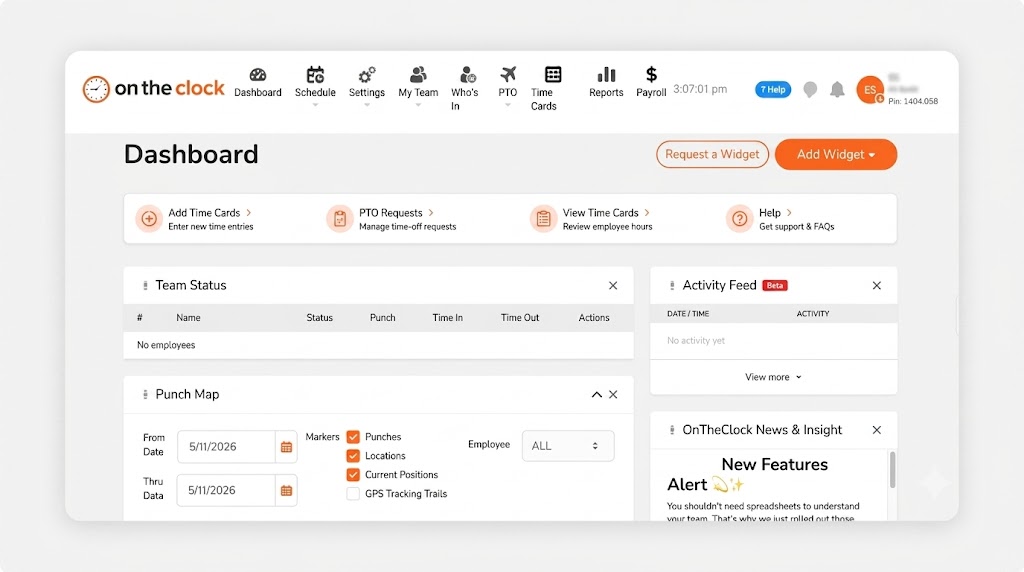
Most schools run three or four kinds of hourly crews at once, and OnTheClock gives each one its own front door. Drivers punch from their phones at the bus yard, cafeteria and custodial staff use a front-office kiosk, and subs clock in from any browser with no app to install. Every punch lands tagged to the right building, and a live dashboard shows the whole district at a glance, so a missed punch gets fixed Tuesday instead of payroll Wednesday.
Subs and per-diem staff get day-by-day tracking with their own pay rates, and you can archive them over summer break so inactive users cost nothing. Every timecard edit includes a name and a timestamp, exactly what you want when a board member asks who approved that overtime. Customers rate it 4.8 stars on Capterra, and schools qualify for an education discount on top of pricing that's already the lowest on this list for most rosters.
Why OnTheClock Is Different
One plan includes everything. GPS and IP punch controls, kiosk mode, scheduling, PTO accruals, and overtime alerts all sit in the base plan at $5 plus $4 per user per month. A school with 25 hourly staff pays $105 a month, with no feature gates, waiting on a higher tier. Hours export to QuickBooks, Gusto, ADP, or Paychex already coded to your cost centers, or you can add full payroll inside OnTheClock itself.
Plenty of business managers land here after a bigger platform nickeled and dimed them with modules they never used. The honest trade-offs: OnTheClock needs an internet or Wi-Fi connection to punch, text message alerts cost a small extra fee, and its reporting runs lighter than enterprise systems built for 5,000-employee districts.
Key Features
Pros
Cons
Pricing
- 30-day free trial, no credit card is required at sign-up
- $5/month base plus $4 per user/month (see how OnTheClock pricing works)
- Optional payroll: $40/month base plus $6 per employee/month

Connecteam: Best Solution for Districts That Need Staff Messaging
Available on: Web, iOS, Android
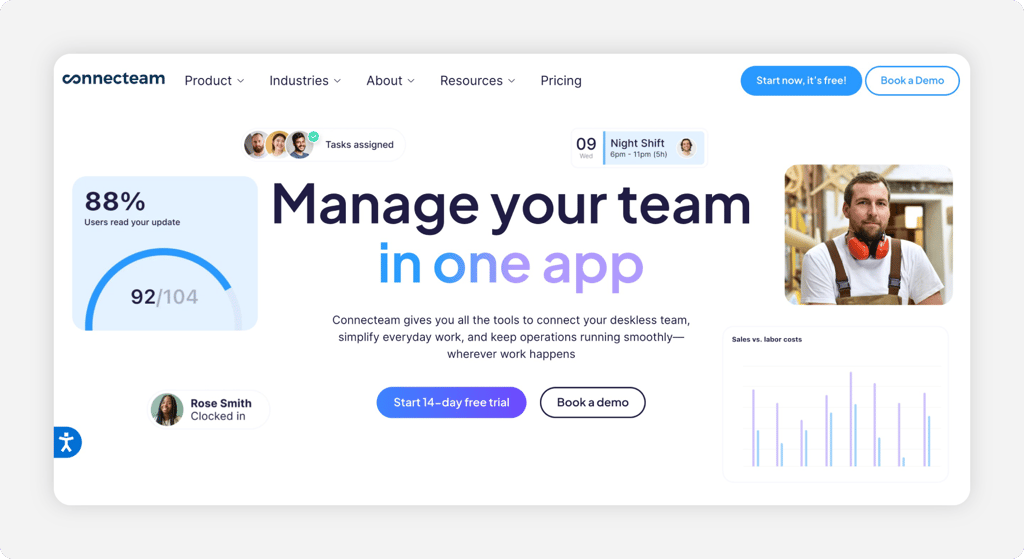
Some districts spread one custodial team across five buildings, and the real problem is reaching them, not just clocking them. Connecteam bundles a time clock with built-in chat, updates, and checklists, so the facilities director can fix a missed punch and message the crew about a gym setup in the same app. One app does both jobs. Geofences can clock staff out automatically when they leave a site, and you can run separate clocks for separate buildings with their own rules.
The kiosk app works on any tablet with PIN codes and optional selfie verification. One thing to plan for: Reviewers on G2 and Capterra mention an admin learning curve and notifications that bunch together. Per-hub pricing also climbs once you pass 30 users or need HR features alongside operations. Fixed pricing for the first 30 users is a gift for small districts, though, and the free plan covers teams of up to 10.
Key Features
Pros
Cons
Pricing
- 14-day free trial; free plan for up to 10 users
- Operations Basic $29/month billed annually ($35 monthly) for the first 30 users, then $0.80 per extra user/month; Advanced $49/month; Expert $99/month

When I Work: Best Solution for After-School Program Scheduling
Available on: Web, iOS, Android
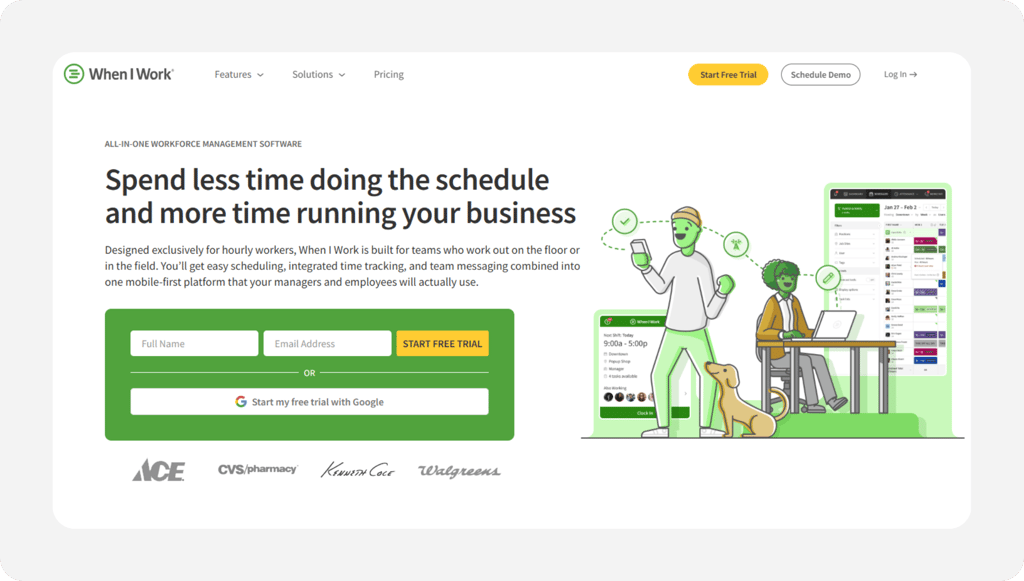
After-school programs, campus rec centers, and tutoring operations live and die by the schedule. Coverage changes weekly. When I Work builds the schedule first, then turns any device into a time clock against it. A site coordinator can post open shifts, let staff swap with approval, and watch punches line up with what was planned. GPS and geofencing keep clock-ins tied to the right campus.
The catch comes at the cash register: Time tracking is a paid add-on on top of the scheduling price, so quote your real total before comparing. Capterra reviewers also mention occasional app slowness after updates and reports gated to the Pro tier. If your pain is coverage gaps more than punch accuracy, this is the pick. Read our full When I Work review for the deeper breakdown.
Key Features
Pros
Cons
Pricing
- 14-day free trial, no credit card is required on sign-up
- Essentials $2.50, Pro $5, Premium $8 per user/month; Time Tracking & Attendance is a paid add-on priced at signup

Homebase: Best Flat-Rate Price for One Building
Available on: Web, iOS, Android
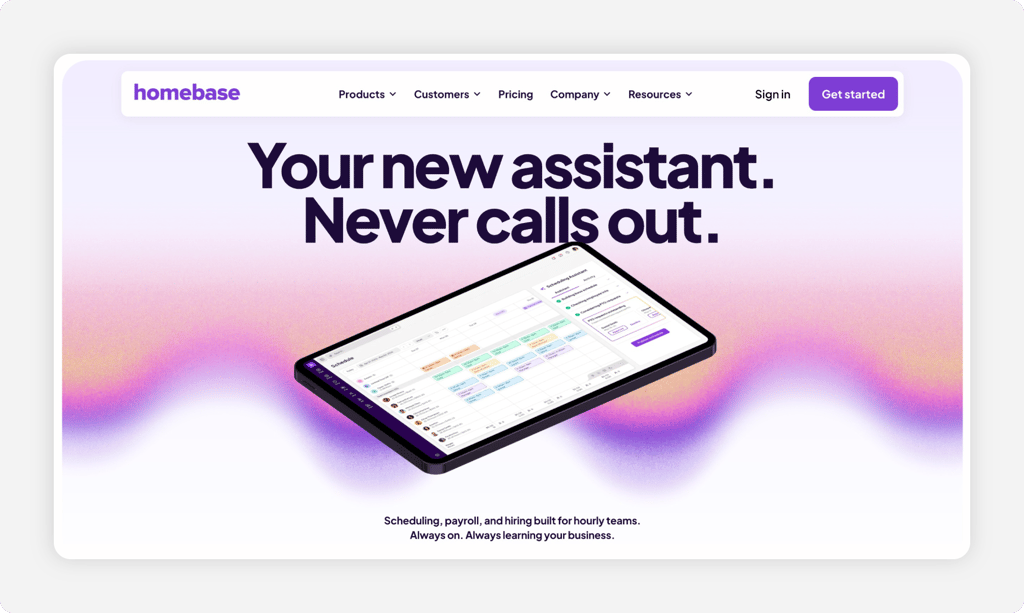
Run the math on a single-site program with a big roster. Homebase charges per location instead of per person, so a preschool or learning center with one address and 25 hourly staff pays $30 a month on Essentials, unlimited employees included. Staff clock in on tablets, computers, or phones; photo capture catches buddy punching on the shared device; and the free Basic plan covers one location with up to 10 employees.
Watch the math in reverse, though. The same per-location model that flatters one building punishes a district with six, and Capterra reviewers mention geofence radius options limited to three preset sizes plus occasional app glitches after updates. Payroll is a clean $39 plus $6 per employee per month add-on if you want hours and paychecks in one place.
Key Features
Pros
Cons
Pricing
- 14-day free trial of All-in-One; free Basic plan for one location, up to 10 employees
- Essentials $30/location/month ($24 billed annually); Plus $70 ($56); All-in-One $120 ($96), all with unlimited employees

Buddy Punch: Best Solution for Stopping Buddy Punching
Available on: Web, iOS, Android
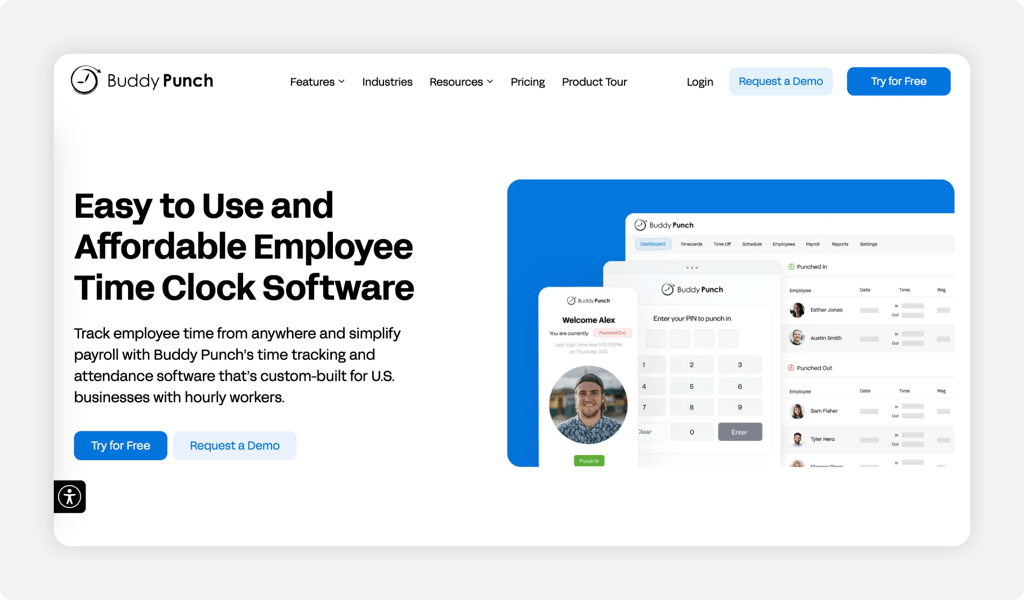
When the kiosk sits in a busy front office, the question is always the same: Did that person punch themselves in, or did a friend do it at 7:58 a.m.? Buddy Punch attacks exactly that. Require a photo on every punch, or add facial recognition to verify the face matches the employee. IP locks keep clock-ins inside the school's network, so nobody punches in from the parking lot or their couch. Its education page is built around districts with location tagging per school, and PTO accruals are included.
It has limits. The $19 monthly base fee stings a tiny program; scheduling requires the Pro tier; and Capterra reviewers report occasional app sync delays, plus advanced GPS sold as an add-on. For a school whose one real leak is punch integrity, this tool earns its name.
Key Features
Pros
Cons
Pricing
- Free trial, no credit card is required at sign up
- Starter $4.99/user/month billed annually ($5.49 monthly) plus $19/month base; Pro $5.99 ($6.99) plus $19 base adds scheduling

QuickBooks Time: Best for Schools Already on QuickBooks
Available on: Web, iOS, Android
Why QuickBooks Time Is Best for Schools Already on QuickBooks
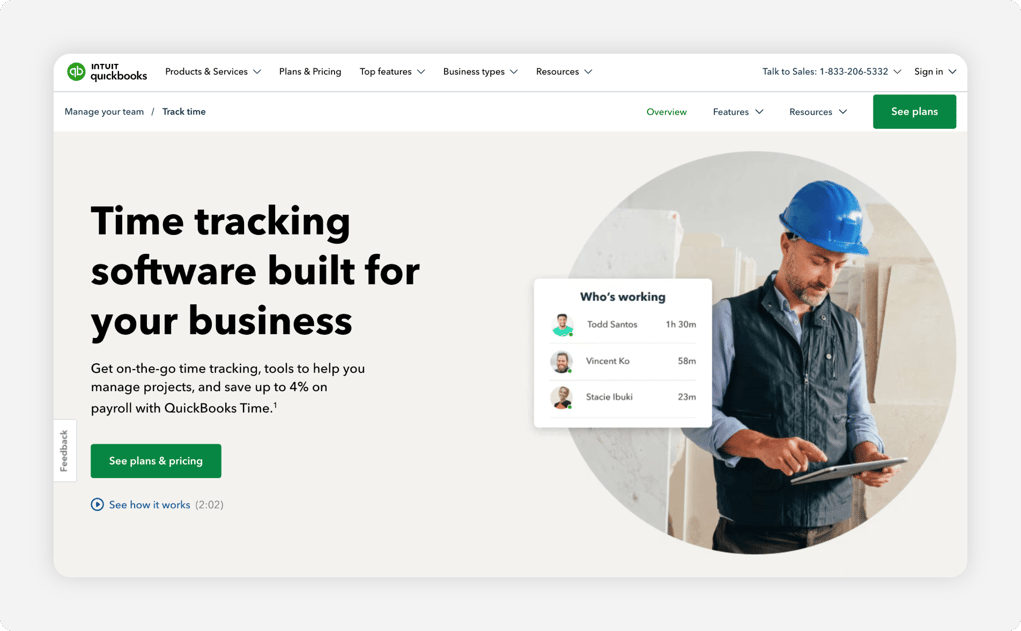
If your bookkeeper already utilizes QuickBooks Online, hours flowing straight into the books beats any feature list. QuickBooks Time pipes approved punches directly into QuickBooks payroll and invoicing, with a tablet kiosk for the front office, the Workforce mobile app for drivers and field staff, and scheduling on both plans. Many private schools and learning centers already run their accounting here, which makes this the path of least resistance.
Budget for the gaps: A QuickBooks Online subscription is required; geofencing is only available on the pricier Elite plan; and at $20 base plus $10 per user, it has the highest per-user cost on this list. G2 reviewers also report that kiosks log out after browser updates and require re-approval. Weigh the QuickBooks Time alternatives before committing a full school year to it.
Key Features
Pros
Cons
Pricing
- Free trial, no credit card is required at sign-up
- Premium $20/month base plus $8 per user/month; Elite $40/month base plus $10 per user/month

Jibble: Best Free Plan for Unlimited Staff
Available on: Web, iOS, Android
Why Jibble Is the Best Free Plan for Unlimited Staff
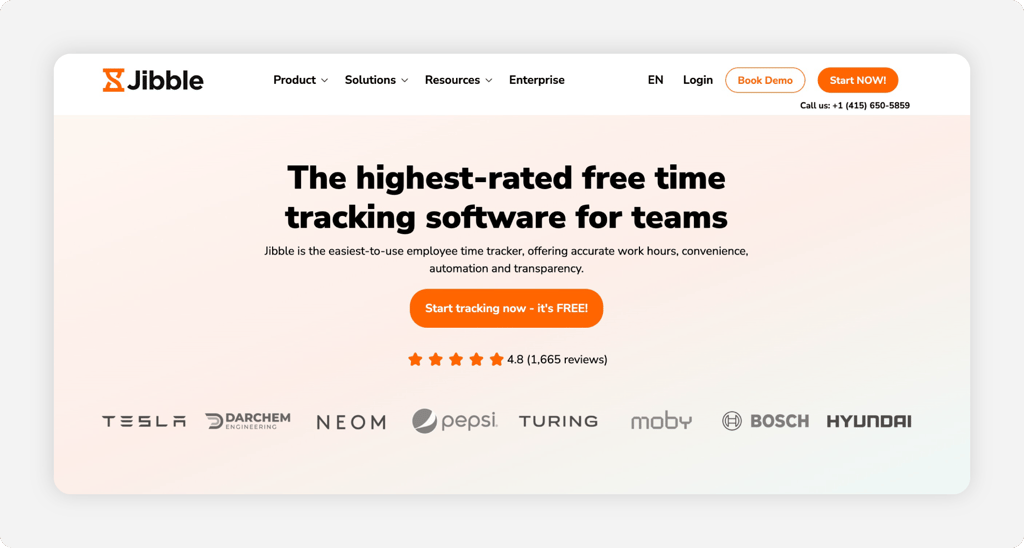
A $0 budget line is real here. Jibble's free plan has no user cap or expiration date, and it includes the features schools usually pay for: a tablet kiosk with facial recognition, GPS clock-ins, automated time sheets, and overtime rules. A cash-strapped PTA-funded program or a district piloting digital time tracking can put every aide and custodian on it this week without a purchase order.
Plan around one thing: Jibble tracks time, and that's the whole job. There's no real shift scheduling, PTO accruals and advanced policies sit in the paid tiers, and reviewers mention occasional mobile sync delays. As a first step away from paper sign-in sheets, nothing on this list moves faster for less.
Key Features
Pros
Cons
Pricing
- Free plan, free forever, unlimited users
- Premium $4.99 per user/month; Ultimate $7.99 per user/month
Side-by-Side Comparison
| Tool | Best For | Pricing | Key Strengths | Top Integrations |
|---|---|---|---|---|
| OnTheClock | K-12 schools and small districts | $5 base + $4/user/month | Kiosk, GPS, scheduling, PTO, sub tracking in one plan | Gusto, QuickBooks, ADP, Paychex, SurePayroll |
| Connecteam | Districts needing staff messaging | Free up to 10 users; $29/month for first 30 users | Time clock plus chat, geofence auto clock-out | Gusto, QuickBooks, Xero, Paychex |
| When I Work | After-school program scheduling | $2.50/user/month + time tracking add-on | Open shifts, swaps, schedule-first workflow | Payroll and POS integrations, Rippling |
| Homebase | Flat-rate price for one building | Free for 1 location/up to 10 employees; Essentials $30/location/month ($24/month billed annually) | Unlimited employees per location, photo capture | POS systems, payroll add-on |
| Buddy Punch | Stopping buddy punching | $4.99/user/month + $19 base (annual) | Photo capture, facial recognition, IP locks | QuickBooks, ADP, Gusto, Paychex, Paylocity |
| QuickBooks Time | Schools already on QuickBooks | $20 base + $10/user/month | Native QuickBooks sync, kiosk, reporting | QuickBooks Online, QuickBooks Payroll |
| Jibble | Free plan for unlimited staff | Free forever; paid from $4.99/user/month | Free facial recognition kiosk, GPS, time sheets | QuickBooks, Slack, Microsoft Teams |
Comparison data verified September 2026 against each vendor's website; pricing and features are subject to change.
What's the Best Time Clock Software for Education?
The best time clock for a school is the one that fixes your biggest leak, and every school's leak comes from different places. Start with one question: Where did last month's payroll surprise come from?
- Subs and floating staff with missing hours across buildings: OnTheClock tracks them day by day with their own rates.
- Doubts about who's actually punching at the shared kiosk: Buddy Punch verifies every punch with a photo or a face.
- No budget at all this semester: Jibble covers unlimited staff for free.
Pick for the problem you hit most, and the rest of the features come along for the ride.
What Is Time Clock Software for Schools?
Time clock software for schools is a digital punch clock that records when hourly staff start and stop work, then turns those punches into time sheets payroll can use. Staff clock in from a phone, a shared tablet kiosk, or web browser, and the system stamps each punch with the time, person, and often the location.
For schools, it replaces the clipboard. Hours for aides, custodians, drivers, and subs can be consolidated into a single dashboard, organized by building or cost center, and used to calculate overtime.
Who Needs Time Clock Software in Education?
Any school that pays by the hour. Even schools with relatively small hourly staffs can benefit from replacing manual spreadsheets when payroll administrators are spending time chasing punches, correcting hours, or re-entering time data. A school paying $4 per user spends $25 a month to track five staff, less than one hour of payroll fixes at $28 an hour.
Districts, charter schools, private schools, preschools, afterschool programs, and tutoring centers all fit. If you're chasing a sub's hours by text the night before payroll, you're the audience.
Why Schools Rely on Time Clock Software
School money is closely watched. Budgets come from taxpayers, tuition, and grants, and an auditor can ask who approved any hour on any pay stub. Digital punches answer with a name and a timestamp. Paper sign-in sheets answer with a shrug.
The old way fails quietly: A custodian's overtime surprises the budget in February, or a grant-funded aide's hours land on the wrong line. A time clock with GPS punch verification can help address these issues by recording punch locations and associating reported hours with individual employees before payroll runs.
Key Features School Time Clock Software Should Have
Six features set the floor. Before comparing prices, make sure any tool on your shortlist covers these basics for a school building.
-
Multiple punch methods: Kiosk for the front office, mobile for drivers, and a browser for subs.
-
Punch verification: GPS, IP locks, photos, or PINs that help deter buddy punching.
-
Multibuilding coding: Hours tagged to the right school or cost center automatically.
-
Overtime alerts: A warning before someone crosses 40 hours, not after.
-
PTO tracking: Accruals and requests in the same system as punches.
-
Payroll export: One-click sync to QuickBooks, Gusto, ADP, or Paychex.
How to Choose the Proper Time Clock Software for Schools
Step 1: Count every hourly role you pay, then run the price math
List every person who punches: aides, paraprofessionals, custodians, cafeteria staff, drivers, front office, coaches, and subs. The count decides which pricing model wins. Per-user pricing rewards small rosters, while per-location pricing rewards big rosters within a single building.
Run your number through three models. A school with 25 hourly staff pays $105 a month on OnTheClock ($5 base plus 25 x $4). Homebase Essentials runs $30 a month for one location, and QuickBooks Time Premium runs $270 ($20 base plus 25 x $10). Now run it at 10 staff: OnTheClock drops to $45, Homebase stays $30, and QuickBooks Time is $120. The cheapest tool changes with the roster, so do the multiplication before any demo.
Count subs separately. Some vendors bill every name on the roster, while OnTheClock lets you archive inactive subs so summer break doesn't cost you. Ask each vendor exactly how an inactive employee is billed.
Step 2: Name the problem that costs you the most.
Schools lose time and money three ways. Punches never happen, like the sub who signed nothing; punches come from the wrong person, which is buddy punching at the kiosk; or punches land in the wrong place, with hours billed to the wrong building or grant. Pull your last three payroll cycles, and count which fix ate the most admin hours.
Be honest about the size. Six staff each padding 10 minutes a day at $16 an hour is roughly $69 a week or $300 a month. One missed sub day reconstructed from memory might cost an hour of your business manager's time plus an angry phone call. The tool you pick should solve the expensive problem first; verification tools, like Buddy Punch, fix the second problem, while live dashboards and sub-tracking fix the first.
Step 3: Match punch devices to each crew
Walk the building in your head. Cafeteria staff arrive at 6:30 a.m. through the kitchen door, custodians split mornings and evenings, drivers start at the bus yard two miles away, and subs show up anywhere with no app installed. Each group needs a punch method that sits where they already stand.
That usually means a tablet kiosk at the staff entrance, mobile apps with GPS for drivers and floaters, and a plain browser login for subs. Check that the price covers all three. When I Work charges extra for time tracking, and some tools charge per kiosk device. A clock nobody can reach becomes a clipboard again within a month.
Step 4: Check multiple pay rates and building coding
School staff constantly wear two hats. An aide tutors after school at a different rate, a custodian picks up event hours, and a coach teaches a morning class. Your time clock must hold more than one rate per person and apply the proper rate to the appropriate hours without manual edits.
Coding matters just as much for the budget. If hours export already tagged to the right building, department, or grant line, your bookkeeper stops re-keying numbers, and your grant reports stop drifting. Ask each vendor to show an export, then check it matches the cost centers in your accounting system line for line.
Step 5: Confirm overtime rules and labor law settings
The FLSA requires a daily record of hours worked for every nonexempt employee, and timecards must be kept for at least two years under DOL Fact Sheet #21. Any tool you pick should store records that long by default and produce them on demand. Homebase's free plan, for example, only stores time sheets for 90 days, which fails that bar on its own.
Then, set the overtime tripwire. The alert should fire when a custodian hits 35 hours on Thursday, while there's still time to swap a weekend shift. Your state may also layer daily overtime rules on top of the federal weekly standard, so confirm the tool handles your state's rules, not just the 40-hour default.
Step 6: Check the payroll connection before you fall in love
A great time clock with a bad payroll handoff just moves the typing to a different desk. Confirm the tool syncs directly with your provider, whether that's QuickBooks, Gusto, ADP, or Paychex, and run one test export during the trial. See what your bookkeeper actually receives.
If you're shopping payroll too, the bundle math changes. OnTheClock adds full payroll for $40 a month plus $6 per employee, and Homebase adds it for $39 plus $6. Sometimes one bill beats two systems, but only when the time data feeding it is already clean.
Step 7: Run the trial through one full pay period
A demo shows the happy path. But, a real pay period shows the Monday after a snow day, the sub who punched in twice, and the custodian who forgot to clock out before the weekend. Start the trial on day one of a pay cycle and run it through the export, side by side with your current method.
Then, compare the two results. If the trial caught errors or your clipboard missed, you have your answer and a number to show the board. Most tools here offer 14 to 30 days free with no credit card, which covers at least one full cycle for most schools.
Step 8: Ask about education and nonprofit discounts
Schools rarely pay sticker price for software, and time clocks are no different. OnTheClock advertises discounted pricing for education, government, and nonprofit organizations right on its pricing page; you just have to contact them to claim it.
It never hurts to ask. Send every vendor on your shortlist the same question in writing, and ask about annual billing while you're at it, since several picks here knock 20% off for paying yearly. Five minutes of email can fund a classroom's worth of supplies.
Tips for Implementing Time Clock Software in Schools
-
Start with one crew, not the whole district. Roll out to custodians or cafeteria staff first, fix the surprises, then expand. A two-week pilot with eight people surfaces 90% of the problems at 10% of the noise.
-
Train subs in the hiring packet. Add a one-page punch guide to every substitute onboarding folder so the clock is part of day one, not an afterthought when payroll comes up short.
-
Write the time policy down before you switch on alerts. Staff accepts rounding rules and overtime approvals far better when the policy is on paper first, and federal recordkeeping rules under the Fair Labor Standards Act give you the floor to build on.
Frequently Asked Questions
What is the best time clock software for education?
OnTheClock is the best time clock software for K-12 schools and small districts. It includes kiosk, mobile, and browser punching; GPS controls; scheduling; PTO; and sub-tracking in one $5 base plus $4 per user per month plan. The right pick still depends on your situation: Jibble wins on free options, Buddy Punch wins on punch verification, and QuickBooks Time wins if your books already live in QuickBooks.
How much does time clock software cost for a school?
Between $0 and about $270 a month for a school with 25 hourly staff, depending on the tool. Jibble is free for unlimited users, OnTheClock runs $105 a month for 25 staff, Homebase starts at $30 a month per location when billed monthly, and QuickBooks Time Premium costs $270 for the same roster, before the required QuickBooks Online subscription. Ask about education discounts before paying the listed price.
Can substitute teachers and per-diem staff use a time clock app?
Yes. The best tools give subs a simple browser login so they can punch in without installing an app. They track subs day by day at their own pay rate, and they let you archive a sub when the assignment ends, so inactive users don't add to the bill. OnTheClock supports all three, and most picks on this list handle at least browser punching.
Do schools have to keep time records under federal law?
Yes. The Fair Labor Standards Act requires employers, including schools, to record hours worked each day and each workweek for every nonexempt employee, and to keep timecards for at least two years. Any complete and accurate timekeeping method is acceptable, but digital records with timestamps and edit trails are far easier to audit than paper sign-in sheets.
Can school staff clock in across multiple buildings?
Yes, if the tool supports location tagging. GPS geofencing lets a district set up zones for each school, the bus yard, and the maintenance shop, so a floating custodian's punches land tagged to the building where they actually worked. OnTheClock, Connecteam, and Buddy Punch all support multibuilding setups on the plans listed in this article.
How long does it take to set up time clock software for a school?
Under an hour for most small schools. Set up involves importing the staff list, selecting punch methods for each crew, and inviting everyone via email or text. Plan a full pay period of parallel running before you drop the old paper system. Schedule the go-live date for the first day of a pay cycle, so every paycheck comes from exactly one system.
Ready to Retire the Paper Sign-In Sheet?
Give your aides, custodians, drivers, and subs one simple way to punch, and give payroll clean hours every time.
No credit card required is required at sign-up, and you'll be set up in minutes.
beca
