

Jump to section
Try OnTheClock Free
Save time and make payroll effortless with our easy-to-use, affordable employee time tracking app.
Try It FreeKey Takeaways
- ✔OnTheClock is the best overall pick for most trades shops: GPS-enabled time tracking, job tracking, and scheduling at $5/month base plus $4 per employee/month, with optional payroll priced separately.
- ✔Match the tool to your top pain. Workyard emphasizes GPS-based field reporting, ClockShark specializes in job costing, and QuickBooks Time integrates with QuickBooks.
- ✔Offline mode matters for trades. Confirm whether each app can capture punches without service and synchronize later, especially at low-signal job sites.
- ✔Connecteam and busybusy offer free plans for small or just-starting crews.
- ✔Run the free trial on a real job site before you pay. Crew adoption is the only test that counts.
The best time clock software for skilled trades is the one that records field hours accurately and helps prepare approved timecards for payroll without a Friday scramble. Choose a clock your tradespeople will actually use on-site, from a phone, with hours that land clean in payroll and tie back to the right job.
Picture a six-person HVAC crew spread across four jobs on a Thursday. One tech forgets to punch in, and another writes his hours on a scrap of paper that goes through the wash. By Friday afternoon, you're texting the crew, guessing at start times, and hoping the numbers are close enough to run payroll. Repeating that process every pay period wastes time and can increase labor costs.
No single tool wins on everything. So, below, we break down the best pick for each situation a trades business runs into.
What Skilled Trades Actually Want
When a trades business shops for a time clock, they're really after one thing: hours they can trust. Crews move between sites, work out of trucks, and clock in where the cell signal is thin. The hours have to be right before anyone runs payroll.
Then comes proof. You want to know who was on which site and when without playing detective. GPS-enabled punches can associate a timestamp with a device location for manager review. For a deeper look at how this plays out day-to-day, see our guide to time tracking for construction crews.
And you want to know which jobs make money. Hours tied to a job and cost code help you evaluate labor costs against job estimates. When trades crews pick a time clock, they're really trying to trust their hours. But the right pick shifts with what you need most. Some need better GPS punch records above all. For others, it's job costing, a free plan, or a clean tie-in to the accounting system they already run.
Quick Picks: The Best Time Clock Software for Skilled Trades at a Glance
-
OnTheClock: Best overall for skilled trades
-
Workyard: Best for GPS field tracking
-
ClockShark: Best for job costing
-
Connecteam: Best free option
-
busybusy: Best for equipment tracking
-
QuickBooks Time: Best for QuickBooks users
How We Evaluated the Best Time Clock Software for Skilled Trades
We judged each time clock on what actually matters on a job site, not on feature-sheet length. We compared every option against eight practical criteria relevant to trades businesses through our OnTheClock Skilled Trades Time Clock Scorecard:
-
Mobile clock-in: Crews punch from a phone at the site, not a back-office terminal.
-
GPS and geofencing: Supported punch records may include device location information, depending on location settings and accuracy.
-
Job and cost-code tracking: Hours can be assigned to jobs and cost codes to help estimate project labor costs.
-
Offline mode: For low-signal sites, confirm whether punches can be recorded offline and synchronized later.
-
Payroll and accounting sync: Hours flow into QuickBooks, Gusto, ADP, or your payroll without rekeying.
-
Buddy punch prevention: PINs, photos, and supported biometrics can discourage unauthorized punches.
-
Setup and crew adoption: A nontechnical crew can use it on day one.
-
Price for a small shop: The total cost makes sense for a five- to 20-person team.
OnTheClock earns the top spot for its combination of affordable time tracking, GPS controls, job tracking, scheduling, and payroll integrations. Full-service payroll is optional, and offline punching is not supported. That breadth at the base price is the basis for the label, not a ranking against the other picks. Each of those serves its own situation differently.
The Best Time Clock Software for Skilled Trades
Here are the best time clock software solutions for skilled trades with the right pick for each situation. For each one, we cover whom it fits best, where it stands out, and where it may not be the right move.

OnTheClock: Best Overall Solution for Skilled Trades
Available on: Web, iOS, Android
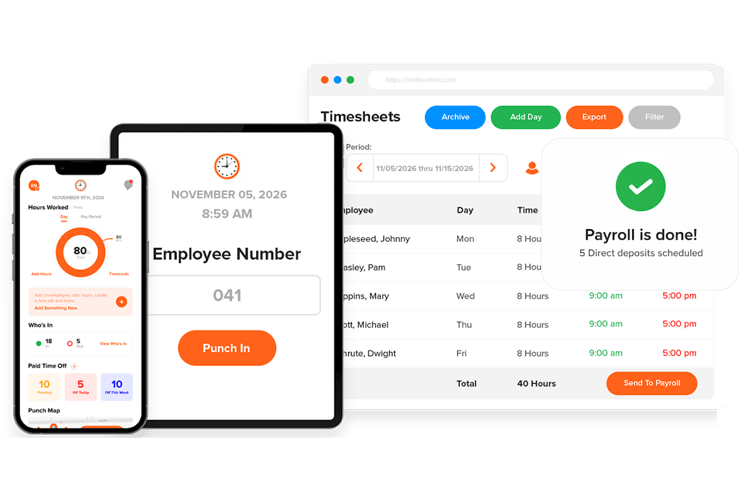
Why OnTheClock Is Best Overall for Skilled Trades
OnTheClock is the best overall time clock for skilled trades because it does the whole job, simply and cheaply, without making you climb a pricing ladder to unlock what field crews need. It fits the typical small trades shop: an HVAC, electrical, or plumbing business running five to 20 hourly workers who wants accurate timecards, location-related punch records, and a clear path to payroll.
Here's the basis for the top spot. OnTheClock includes core mobile time tracking, GPS controls, job tracking, and scheduling in its standard time tracking plan; optional full-service payroll incurs an additional cost, and offline punching is a limitation. Crews clock in from a phone, web browser, or shared kiosk. Supported GPS punch records and geofencing help managers review device locations and limit punches outside configured job sites. Hours are attached to jobs for cost tracking, and approved time can be exported to compatible services or processed through optional OnTheClock Payroll. As with any GPS-based system, location accuracy depends on the device and working conditions.
Why OnTheClock Is Different
The difference is the lack of fine print. OnTheClock's standard time tracking plan ($5 base and $4 per user/month) includes GPS, geofencing, scheduling, PTO, job tracking, and payroll integrations without requiring a higher time tracking tier. A 10-person crew pays $45 a month. No per-feature upsells, no forced upgrade to unlock geofencing, and real humans answer the phone.
Picture the owner of a seven-person plumbing shop who's been burned before: bought a heavier platform, paid for modules the crew ignored, spent more time fighting the software than running payroll. OnTheClock is built for exactly that person. Setup and training needs vary by team, but the standard time tracking charges are predictable. The trade-off is honest. OnTheClock requires an internet or Wi-Fi connection to punch in, and shops that want deep approval chains or heavy custom reporting will eventually outgrow it.
Key Features
Pros
Cons
Pricing
- 30-day free trial, no credit card is required at sign-up
- $5/month base plus $4 per employee/month (see how OnTheClock pricing works)
- Optional full-service payroll: $40/month base plus $6 per employee/month, with a one-time $250 implementation fee

Workyard: Best for GPS Field Tracking
Available on: Web, iOS, Android
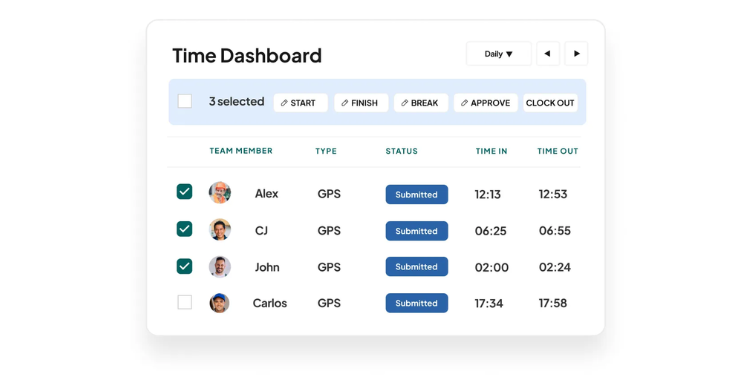
Why Workyard Is Best for GPS Accuracy
Workyard is a useful option when GPS-related field visibility is the top priority. It's built for contractors who bill for travel time, run crews across several active sites each day, and need GPS-based location records to review alongside employee-reported hours.
Workyard was built from the ground up for construction and skilled trades, and it lists HVAC, plumbing, electrical, concrete, and roofing as its core user groups. Its GPS-based features can help document job-site visits, travel routes, and mileage. Confirm which functions, including punches and synchronization, work offline in your selected plan. Geofencing and photo-verification options on eligible plans can help managers review clock-ins. Hours tag to cost codes and sync to QuickBooks and Sage, so labor cost shows up while the job is still running, not after. For a contractor who's lost money to vague "I was on-site" claims, those records can support timecard review.
Be sure to check the price: Workyard's standard month-to-month pricing is not clearly published. Contractors should request a quote based on their crew size and required features. Its construction-focused capabilities may be more than a small operation needs.
Key Features
Pros
Cons
Pricing
- 14-day free trial, no credit card is required at sign-up
- Standard month-to-month rates and base fees require a current Workyard quote

ClockShark: Best for Job Costing
Available on: Web, iOS, Android
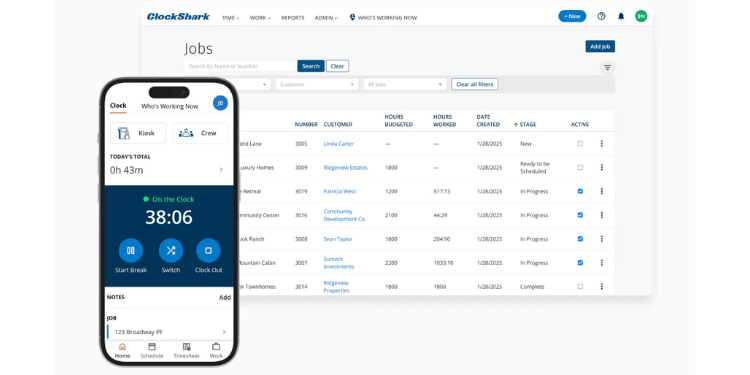
Why ClockShark Is Best for Job Costing
ClockShark is a strong choice when job costing and QuickBooks Desktop are central to how you run the books. It fits the trades contractor who estimates jobs using actual labor numbers and still runs accounting in QuickBooks Desktop, which plenty of construction teams do.
ClockShark was purpose-built for how contractors and field crews work. Employees switch between jobs and cost codes mid-shift right from their phones, and approved time can be transferred through supported QuickBooks integrations, including compatible Desktop versions. Its GPS goes deep: Managers can review available clock-in status, GPS-related records, and route history, depending on plan and device settings. That makes it the job costing and field-visibility specialist for this group. A G2 reviewer summed up the appeal as map-based team tracking and job-specific clock-ins made easy, while wishing it also ran payroll. That's the honest limitation: ClockShark has no native payroll, offline depth is limited, and the cost climbs for small teams. Using the quoted Standard rates of $42/month base plus $9.50/user/month, a 10-person crew would cost $137/month, subject to the applicable contract term. We break the two down in detail in our ClockShark and OnTheClock comparison.
Key Features
Pros
Cons
Pricing
- 14-day free trial
- Standard: $42/month base plus $9.50/user/month; Pro: $63/month base plus $11.50/user/month (confirm contract terms, including reported three-year commitment)

Connecteam: Best Free Option
Available on: Web, iOS, Android
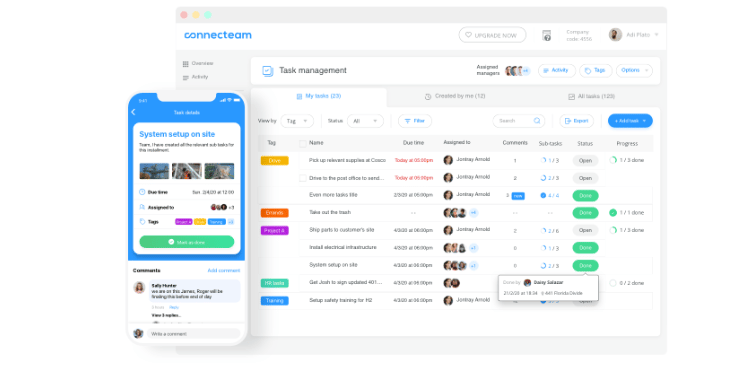
Why Connecteam Is Best as a Free Option
Connecteam is the best free pick for a small trades crew that wants more than just a punch clock. It fits the micro-business, i.e., a five-person handyman or startup electrical outfit that wants time tracking and scheduling, with communication features depending on the selected hub and plan.
Connecteam offers a free Small Business plan for up to 10 users; included features have plan-specific limits. It was designed phone-first, so workers with little technology savvy pick it up quickly, and its Operations and Communications hubs offer GPS time tracking, scheduling, task checklists, and team communication through the relevant subscriptions. For a small crew juggling four separate tools, the free plan can be a practical starting point, depending on feature needs.
Operations Basic starts at $35/month for the first 30 users on a monthly plan, with Advanced at $59/month and Expert at $119/month; additional hubs and users may incur extra charges. The real caution here: Before using Connecteam at low-signal sites, verify which features work offline and how records synchronize. Geofencing capacity varies by plan; Advanced includes up to 10 geofence sites, while Expert advertises unlimited sites; and its job costing depth trails many of the construction-built tools featured in this article.
Key Features
Pros
Cons
Pricing
- Free for up to 10 users
- Operations Basic $35/month, Advanced $59/month, Expert $119/month for first 30 users; additional users or hubs may cost extra

busybusy: Best for Equipment Tracking
Available on: Web, iOS, Android
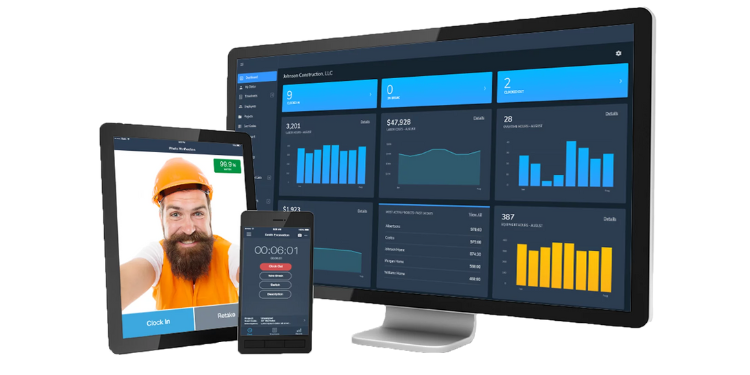
Why busybusy Is Best for Equipment Tracking
busybusy is the best fit when you need to track equipment alongside labor. It suits the trades or excavation crew that runs machines and tools across sites and wants to know what gear is on which job, not just who.
busybusy pairs GPS time tracking with equipment tracking. This allows you to see labor and machine hours against the same job and cost code. Crews clock in from their phones, GPS-enabled records support review of device locations, and the app handles job costing, daily reports, and project photos. It offers integrations with supported accounting and payroll systems; availability depends on the provider and plan. The free plan covers clock-in/-out, GPS, breaks, and digital timecard signatures, making it easy to get started. There are a few red flags, though. Some reviewers find data entry cumbersome and hit occasional minor glitches, and Pro and Premium add reporting, verification, equipment, and field-management capabilities.
Key Features
Pros
Cons
Pricing
- Free plan available; trial terms depend on current offer
- Paid Pro and Premium plans available; request current month-to-month pricing

QuickBooks Time: Best for QuickBooks Users
Available on: Web, iOS, Android
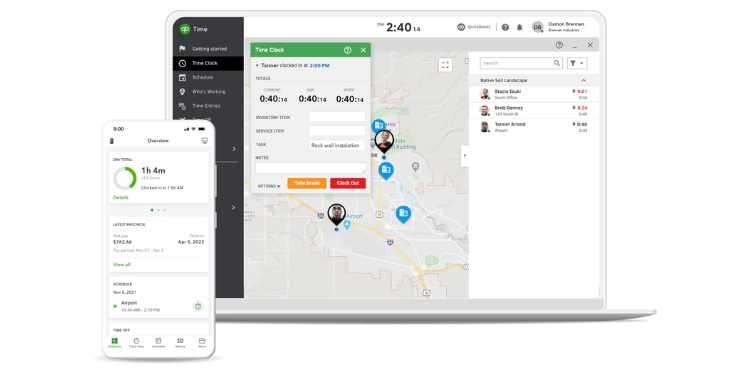
Why QuickBooks Time Is Best for QuickBooks Users
QuickBooks Time is the right choice if you already use QuickBooks and want time tracking that integrates seamlessly with it. It fits the trades shop whose books, payroll, and invoicing all live in the QuickBooks ecosystem and minimizes any need to reconcile data.
Its standout is the close integration with supported QuickBooks accounting and payroll workflows. Crews clock in from the mobile app, a group leader can clock an entire crew in and out, and approved hours export to QuickBooks payroll in a few clicks.
GPS and geofencing can help managers review clock-in locations and identify punches outside approved job-site boundaries. The catch is the plan structure: Elite includes additional project-tracking and mileage capabilities; plan entitlements for geofencing and job costing should be confirmed, and the whole thing requires an active QuickBooks Online subscription. Time Premium costs $20/month base plus $10/user/month, while Time Elite costs $40/month base plus $12/user/month. Time Elite is not itself a full-service payroll subscription. For a small team not already on QuickBooks, that base fee and the gated features make it a hard sell.
Key Features
Pros
Cons
Pricing
- 30-day free trial
- Time Premium: $20/month base plus $10/user/month; Time Elite: $40/month base plus $12/user/month; separate QuickBooks Online subscription required
Side-by-Side Comparison
| Tool | Best For | Pricing | Key Strengths | Top Integrations |
|---|---|---|---|---|
| OnTheClock | Best overall | $5 base + $4/employee/month; optional payroll | Core time tracking, GPS controls, job tracking; optional payroll | QuickBooks, Gusto, ADP, Square |
| Workyard | GPS field tracking | Standard monthly pricing requires a quote | GPS-based field records, mileage, offline options | QuickBooks, Sage |
| ClockShark | Job costing | Standard $42 base + $9.50/user/month; contract terms apply | Cost codes, route replay, QB Desktop | QuickBooks (incl. Desktop) |
| Connecteam | Free option | Free up to 10 users; Operations Basic $35/month for first 30 users | Phone-first, scheduling, chat | CSV / payroll exports |
| busybusy | Equipment tracking | Free plan; paid monthly rates require confirmation | Equipment + labor on one job | QuickBooks, Sage, Foundation, Paychex |
| QuickBooks Time | QuickBooks users | Premium $20 + $10/user/month; Elite $40 + $12/user/month | Supported QuickBooks workflows | QuickBooks Online |
Pricing and features reviewed October 2026 using available vendor documentation. Standard monthly rates are shown where verified; contract terms and checkout totals may vary.
What's the Best Time Clock Software for Skilled Trades?
The best option isn't the one with the longest feature list; it's the one that fits the situation you're actually in.
Start with one question: What are you really trying to solve? A lot of trades owners buy on features they might need someday and end up with something heavier than the crew will use. Focus on your current bottleneck instead.
- Do you mostly need accurate hours and clean payroll without overpaying? Start with OnTheClock.
- Are detailed device-location punch records the thing you can't compromise on? Look at Workyard.
- Do your books live in QuickBooks already? QuickBooks Time or ClockShark fit that groove.
Your answer points to your pick. The proper time clock for skilled trades removes the friction you encounter most often. When that friction disappears, payroll stops being a Friday fire drill.
What Is Time Clock Software for Skilled Trades?
Time clock software for skilled trades is a digital tool that lets field workers clock in and out from a phone, tablet, or kiosk, rather than a paper card. It records employee punch times and, when supported, device location information, and then turns those punches into time sheets ready for payroll.
For trades like HVAC, electrical, and plumbing, it usually adds GPS location, job and cost-code tagging, and a sync into payroll or accounting. The point is simple: accurate hours, less manual entry, and records to help review job assignments and reported time.
Who Needs Time Clock Software?
Any trade business paying hourly workers across multiple locations benefits from it. A solo operator with no employees probably doesn't. The moment you have a crew, the math changes.
Electrical, plumbing, HVAC, carpentry, and welding shops are prime users, along with general contractors and field-service teams. So are office managers who process payroll and owners who need job-level labor cost data. If you're chasing time sheets or guessing at hours, you're the audience.
Why Skilled Trades Rely on Time Clock Software
Trades work happens away from the office, across job sites, and often on tight margins. Labor is usually the single biggest cost on any job, so the accuracy of your hours directly shapes whether that job made money.
Paper time sheets and memory don't hold up under pressure. A digital time clock gives trades businesses a reliable record they can trust for payroll, client billing, and estimating the next job. It replaces guesswork with timestamps, which protects both the worker's paycheck and the owner's margin. We cover the most expensive ways it can go wrong in our breakdown of common construction time tracking pitfalls.
Key Features Time Clock Software Should Have
Before you compare prices, make sure any tool you consider covers the basics a trades crew actually uses on-site.
-
Mobile clock-in: Punching from a phone at the job, not a fixed terminal.
-
GPS and geofencing: Supported GPS punch records help review device location at clock-in.
-
Job and cost-code tracking: Hours tied to jobs so you see labor cost per project.
-
Offline mode: Punches that record without signal and sync later.
-
Payroll and accounting sync: A clean flow into QuickBooks, Gusto, ADP, or your payroll.
-
Buddy punch prevention: PINs, photos, or supported biometrics to help deter unauthorized punching.
How to Choose the Proper Time Clock Software for Skilled Trades
Step 1: Name your biggest bottleneck. Before looking at any tool, pin down the one problem costing you the most. Maybe it's missed punches, no proof of site presence, or payroll taking half a day. The right tool is the one that solves your top pain, not the one with the most features. Write down your top two and judge every option against them.
Step 2: Check it works where your crews work. Trades crews often work in basements, rural areas, or new construction with no signal. Confirm the app records punches offline and syncs later if any of your sites lose coverage. A clock that needs constant connection will fail you exactly when you need it. Test it on a real job site during the free trial, not just in the office.
Step 3: Match it to your payroll and accounting. If your books already live in QuickBooks, a native sync saves real reconciliation work. If you run Gusto, ADP, or Paychex, confirm the tool exports cleanly to them. Rekeying hours by hand is where errors and wasted time creep in, so this connection matters more than most buyers expect.
Step 4: Add up the real monthly cost. Most tools charge a base fee plus a per-user rate, and some gate the field features you need behind a pricier tier. Calculate the total for your actual headcount, then confirm the features you need are included at that price. A low per-user rate means little if geofencing or job costing forces an upgrade.
Step 5: Run the free trial with your real crew. The only test that counts is whether your workers will actually use it. Put the app on a few crew members' phones for a week on real jobs. If adoption is smooth during the trial, it'll hold up after you pay. If the crew resists, no feature list will save it.
Tips for Implementing Time Clock Software Successfully
-
Roll it out on one crew first. Pick a single crew or job and run the new clock there for a pay period before rolling it out company-wide. You'll catch the snags, like a confusing geofence or a missed-punch rule, while the stakes are low. Once that crew is comfortable, they become the people who show everyone else how it works.
-
Train on the phone, not the manual. Trades workers learn by doing, not by reading a PDF. Walk each crew through clocking in, switching jobs, and submitting hours on their own phone in five minutes on a real morning. Hands-on beats a help doc every time, and adoption climbs when the first punch feels easy.
-
Set the rules before you start. Decide your overtime, break, and rounding rules and your geofence radius up front, then build them into the software. Sorting this out before the first punch can reduce timecard disputes and support compliance with the Fair Labor Standards Act recordkeeping rules.
Frequently Asked Questions
What's the best time clock software for skilled trades?
For most trade shops, OnTheClock is the best overall pick because it combines affordable time tracking, GPS-related punch records, and job tracking, with optional full-service payroll available separately. Workyard emphasizes field GPS tools, and QuickBooks Time fits businesses already using QuickBooks.
Do trades time clocks work without cell service?
Offline capabilities vary by vendor, plan, and feature. Test whether punches can be recorded without service and synchronized later before using any tool at low-signal sites.
How much does time clock software for trades cost?
Pricing varies. OnTheClock time tracking costs $5/month base plus $4 per employee/month. ClockShark Standard is quoted at $42/month base plus $9.50 per user, subject to contract terms. Workyard monthly pricing requires a current quote, while Connecteam and busybusy offer free plans.
Can a time clock track which job my crew worked on?
Yes. Job and cost-code tracking lets workers tag hours to a specific job, so you can see labor cost per project. ClockShark and busybusy go deep here, and OnTheClock includes it in its base plan.
Will it sync with QuickBooks?
Most do. QuickBooks Time integrates with supported QuickBooks workflows and requires a separate QuickBooks Online subscription. OnTheClock, ClockShark, Workyard, and busybusy all connect to QuickBooks, with ClockShark notably supporting QuickBooks Desktop.
How do I stop buddy punching on a job site?
Use a tool with GPS or geofencing plus photo or PIN verification at clock-in. Geofencing can restrict punches outside configured areas, while photo and biometric checks can help deter unauthorized clock-ins; neither proves that work was performed. Most tools here offer at least one of these.
Start Tracking Time for Free
Stop chasing time sheets on Friday afternoons. OnTheClock gives your crew timecards with optional GPS-related punch records, job tracking, and a clear path to payroll. Full-service payroll is available separately.
Start a free, 30-day trial today. No credit card is required at sign-up.
