Key Takeaways
- ✔The best time clock software for therapists is simple enough that front desk staff clock-in without training, runs on one shared device, and stops buddy punching.
- ✔OnTheClock is the best overall option for therapy practices because it's easy to set up, runs on a shared front desk tablet, and tracks staff across every location in one account.
- ✔Most "best software for therapists" lists focus on EHR platforms, telehealth tools, and client scheduling systems, but you'll also need a reliable time clock if your practice employs hourly staff.
- ✔Pick the tool that fixes the one thing you dread most. Everything else is noise.
The best time clock software for therapists lets your staff quickly clock in on a shared front desk device, stops people from punching in for each other, and hands you clean hours at the end of the week. For most therapy practices, OnTheClock is the best overall option because it brings kiosk clock-in, photo verification, scheduling, and PTO tracking together in one simple place.
Here is the part nobody warns you about: You did not open a practice to become a payroll clerk, but every other Thursday, that's the role you assume. This week it's the sticky note on your monitor, the one that reminds you to "ask Dana what time she left Monday." When you connect with Dana, she isn't sure.
So, you do it the hard way, late, after the last client. One aide forgot to clock out and the app logged her at 14 hours. The front desk total doesn't match the paper sign-in sheet. And the satellite office emailed their hours again as a photo of a notebook page. The math itself takes 10 minutes. Finding the right numbers to do the math takes the rest of the hour.
If that sounds like your week, you're not alone. And here's what trips up most therapists who go looking for help: Nearly every "best software for therapists" guide points you toward an EHR or a client booking tool. Those are great for seeing clients, but they do nothing for the hourly front desk worker, tech, or assistant who needs to punch in. The best time clock software for a therapy practice fixes the staff side: it lets your team clock in quickly, confirms the right person punched in, and keeps your hours clean for payroll.
What Therapy Practices Actually Need in a Time Clock
Therapy practices need four things from a time clock: It has to be simple, run on one shared device, prove who punched in, and cost what it says it costs. Most owners don't want more features; they want a clock that just works. When we read public reviews on G2, Capterra, and the app stores, those same needs came up again and again.
They need it to be simple. A front desk aide should be able to clock in on day one, with no training or manual. If a tool is confusing, staff quietly stop using it, and your hours go back to guesswork.
They need one shared clock. Most small offices have a single tablet or computer up front. A few people share it, so the clock has to let several staff punch in quickly on the same device.
They need proof of who punched in. A quick photo or a location check stops one person from clocking in for a friend. That protects your payroll and your honest staff simultaneously.
And they need a clear bill. The price you see should be the price you pay, with no surprise fees when you open a second office. Simple, honest, and out of your way. That is the whole ask.
Quick Picks: Which Time Clock Best Fits Your Therapy Practice
-
OnTheClock: Best overall for therapy practices
-
Buddy Punch: Best for stopping buddy punching
-
Homebase: Best free option for one office
-
When I Work: Best for shift scheduling
-
Deputy: Best for face-scan clock-in
-
Jibble: Best for tight budgets
-
Connecteam: Best for team messaging
-
QuickBooks Time: Best for QuickBooks practices
How We Evaluated These Time Clocks for Therapists
We judged every tool on seven things therapy practices care about: ease of use, shared kiosk clock-in, buddy punch prevention, multilocation tracking, scheduling and PTO, overtime and break math, and clear pricing. We built the OnTheClock Therapy Practice Time Clock Scorecard from those needs before we looked at a single product, so the criteria came from real front desks, not from what any one tool happens to do well.
Here is what we graded on:
-
Ease of use: Can a front desk worker or a tech clock in without training?
-
Shared kiosk clock-in: Can several staff members punch in on one front desk device?
-
Buddy-punch prevention: Does a PIN, photo, or location check confirm the right person?
-
Multi-location visibility: Can you track staff across more than one office in a single account?
-
Scheduling and PTO: Does it handle rotating coverage and time-off requests?
-
Break and overtime tracking: Does it do the labor law math for hourly staff?
-
Pricing transparency: Do you know the bill before you sign, with no per-location surprise?
Ease of use and shared clock-ins carried the most weight. Those are the two things a front desk feels every single day. We also leaned toward tools that handle time tracking and scheduling on their own, instead of thin add-ons bolted onto something else.
The Best Time Clock Software for Therapists in 2026
OnTheClock is the best overall option, but the right tool depends on what you need most. Below are eight solutions that fit a therapy practice. For each one, we cover who it's for, what it does well, and where it may fall short. No tool is perfect, and we say so.

OnTheClock: Best Overall for Therapy Practices
Available on: Web, iOS, Android
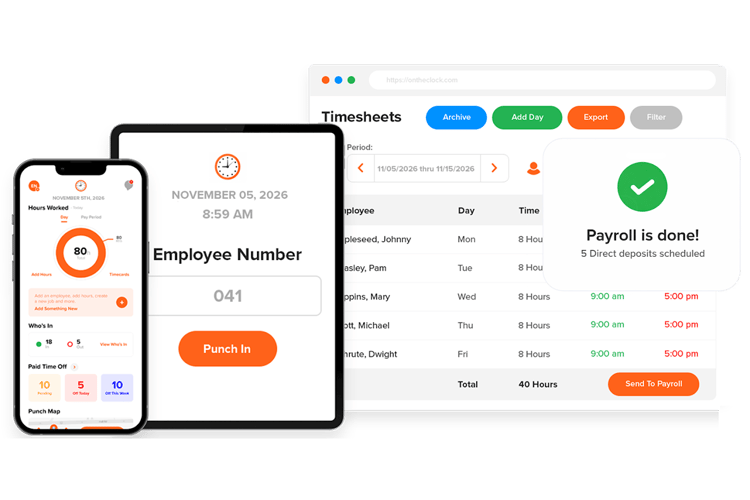
OnTheClock is the best fit for most therapy practices because it's simple, runs on the shared front-desk tablet, and keeps every office under one account. Staff clock in within seconds. You can set it up the same day with no training or IT help.
That simplicity is the whole point. A front-desk worker should not need a manual to punch in. They tap one button, and a photo and location stamp confirm it was really them, not a coworker covering a late start.
What Makes it Different for Therapy Practices?
What sets it apart is location visibility. Run a main office and a satellite clinic, or a few therapy locations, and GPS and location tracking show you who is clocked in and where, in real time. Scheduling, paid time off (PTO), and overtime tracking all live in the same place. So, the front desk and the clinical floor stay organized together.
This fits solo practices and small groups with about three to 75 hourly staff. It works best when a front desk shares one device and the day runs from 9 to 5. Picture a multi-clinic therapy group that outgrew paper. Before, payday meant rebuilding hours by hand from a stack of time sheets per office. Now, the punches are captured as they happen, ready to review and send.
Key Features
Integrations:
Pros
Cons
Pricing
- A free, 30-day trial is available (no credit card)
- $5 monthly base fee plus $4 per user per month (free for two or fewer employees)
Built to Simplify Your Front Desk
Try it free, and see how easy time tracking can be for your practice.
Try Free
Buddy Punch: Best for Stopping Buddy Punching
Available on: Web, iOS, Android
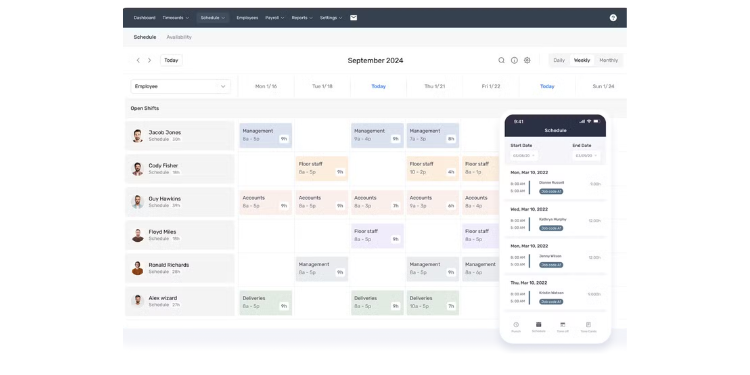
Buddy Punch exists to answer one question: Did the right person clock in? It confirms each one with a PIN, a photo, a webcam shot, a QR code, or face recognition. You pick the method that fits your front desk, then pair it with kiosk mode, geofencing, scheduling, and PTO. So, it's a full-time clock, not just a security gate.
That focus is why it lands well in clinics where coverage is thin, and you can't watch the clock all day. Reviewers in health care settings keep saying the same two things: it sets up fast, and almost nobody needs training to use it.
The $19 monthly base fee is the thing to weigh. It sits on top of the per-user rate, and several small teams call it steep for what they get. There is no offline mode either, so a Wi-Fi drop stops clock-ins cold.
Key Features
Integrations:
Pros
Cons
Pricing
- $19 monthly base fee plus per user from $4.49 per month (Starter); 14-day free trial, no permanent free plan

Homebase: Best Free Option for One Office
Available on: Web, iOS, Android
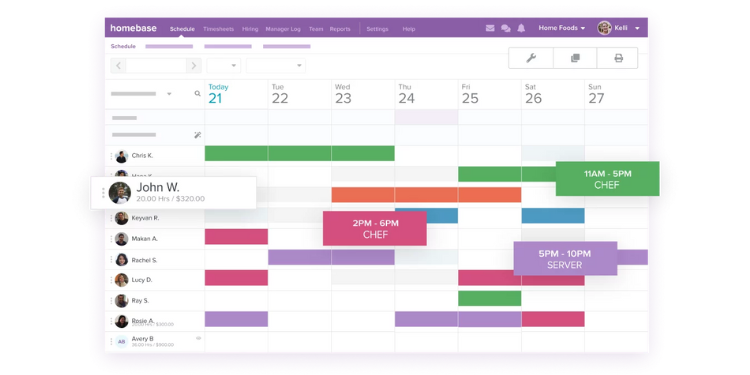
For a single practice watching every dollar, Homebase is the value play. The free plan covers one location and a small team; turns any tablet, phone, or computer into a clock; and throws in scheduling, basic reports, even hiring and messaging tools that most clocks skip. A lean office can run on it without paying anything.
The free tier hides a few asterisks. Photo verification is in, but kiosk PIN logins only start on the paid Basic plan, and GPS sits a tier higher. Geofencing covers just a few preset distances. The bigger one is the per-location billing: Open a second office, and each site pays full freight, which is how a "free" tool turns into a real monthly bill for a growing group. A few users also report the app glitching here and there.
Key Features
Integrations:
Pros
Cons
Pricing
- Free for one location; paid plans from about $24.95 per location per month

When I Work: Best for Shift Scheduling
Available on: Web, iOS, Android
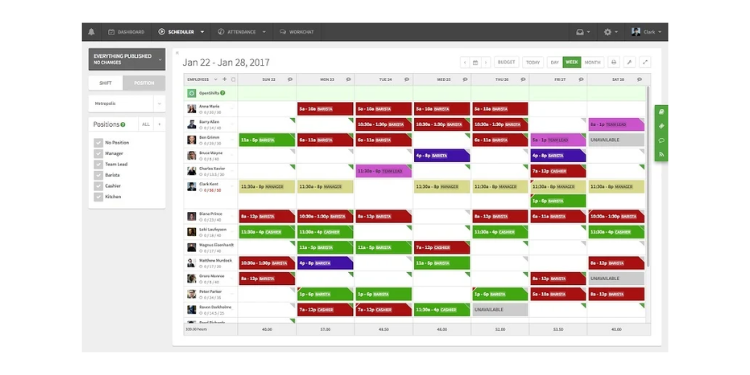
If scheduling is the part that breaks your week, look here. When I Work builds shifts quickly, sends them to staff phones, and lets people swap with approval. The time clock rides along with a photo clock-in.
For a practice juggling part-time clinicians and rotating front-desk coverage, the scheduling side does the heavy lifting. Open shifts get filled from the same app where you publish the schedule, so nobody is texting around to cover a gap. The clock-in is the weak spot. When several people punch in at once, some teams report it stalling or dropping the punch entirely, which is exactly when a busy front desk can't afford it. The time clock is also a paid add-on stacked on top of the scheduling plan, so the sticker price isn't the whole bill.
Key Features
Integrations:
Pros
Cons
Pricing
- Scheduling from $2.50 per user per month (Essentials); time and attendance is a paid add-on; 14-day trial, no free plan

Deputy: Best for Face-Scan Clock-In
Available on: Web, iOS, Android
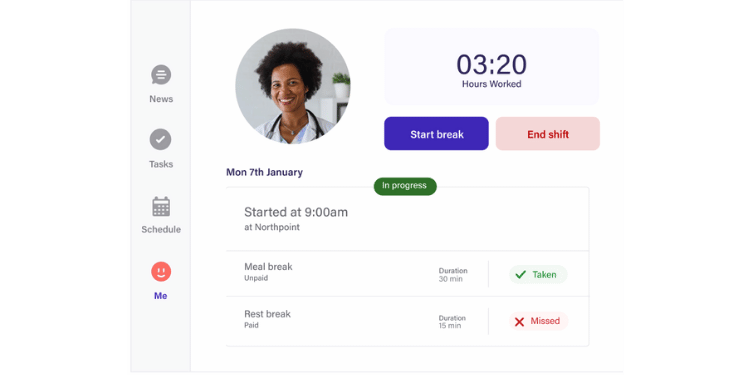
Deputy puts a face scanner on the front desk. You set an iPad by the sign-in window, staff looks at the camera, and the right name lands on the clock. Nobody can punch in for a coworker.
Scheduling is its other strength. If your exam rooms and front desk need shifts mapped out, Deputy does demand-based scheduling and overtime alerts well. That breadth is also its downside for a small office. The product leans scheduling-first, so the time clock can feel like a side job, and the $25 monthly minimum spend means a tiny team pays for more than it uses. If all you want is a clock, this is more tool than you need.
Key Features
Integrations:
Pros
Cons
Pricing
- From $5 per user per month (Lite); $25 monthly minimum spend; 31-day free trial, no free plan

Jibble: Best for Tight Budgets
Available on: Web, iOS, Android
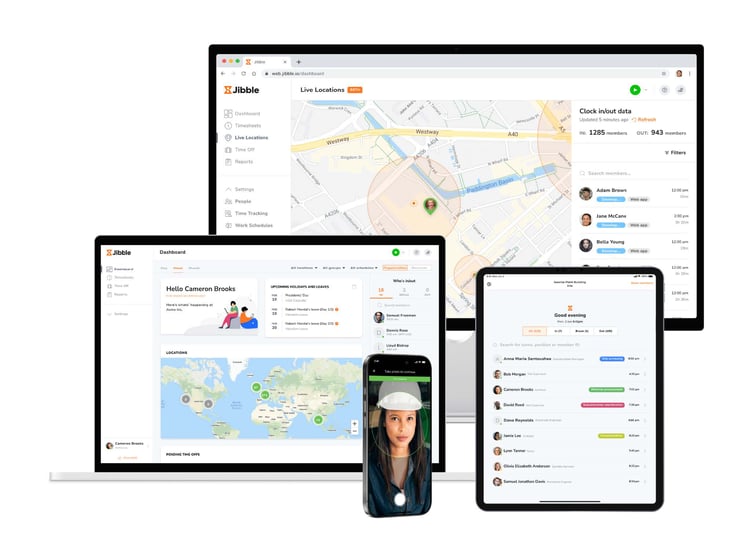
Jibble is the rare time clock that's genuinely free, with no user cap. The free plan includes the kiosk and face recognition that most tools charge for. A small practice can run a real-time clock without paying a cent.
It works on tablets, phones, and the web, so a shared front desk and a remote clinician can both use it. Offline clock-in is built in, which is rare at this price, though a punch can take a beat to sync once the signal returns.
Depth is where the free plan ends. The richer reports are behind paid tiers, and the scheduling tools are thinner than those offered by rivals. A single office that mostly needs honest punches and a clean time sheet won't feel any of that. A growing group that wants real reporting will.
Key Features
Integrations:
Pros
Cons
Pricing
- Free forever for unlimited users; paid plans from about $2.49 to $4.49 per user per month

Connecteam: Best for Team Messaging
Available on: Web, iOS, Android
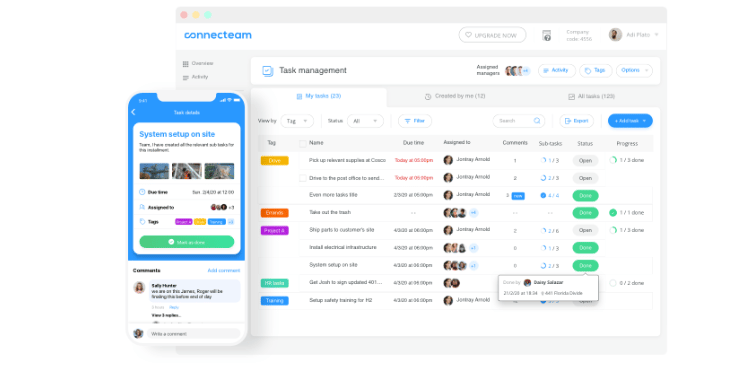
Connecteam rolls a time clock and team chat into one app. It pairs the clock and kiosk with a built-in chat, checklists, and updates, so a practice that wants one place for punching in and staying in touch gets both. Front desk staff and clinicians see the same announcements, and daily checklists keep the office moving.
Working out what you'll actually pay is the hard part. Connecteam splits its features across separate "hubs," and stacking the ones you need into a single price takes patience. It also needs an internet connection to run.
Key Features
Integrations:
Pros
Cons
Pricing
- Free for up to 10 users (all hubs); paid plans from $29 per month for up to 30 users

QuickBooks Time: Best for QuickBooks Practices
Available on: Web, iOS, Android
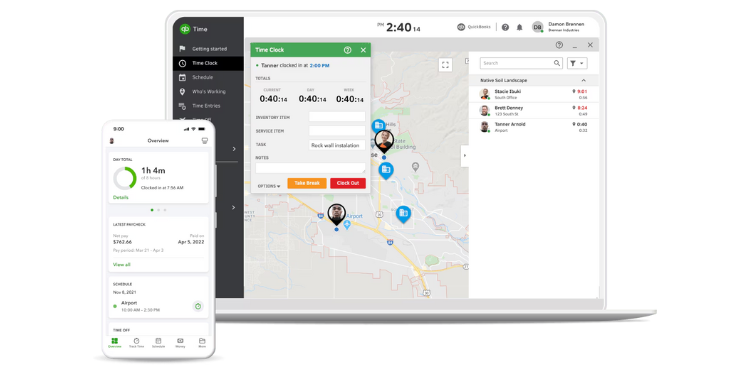
For a practice that already runs on QuickBooks, this one is an easy call. QuickBooks Time automatically enters your staff hours into the system you already use. The clock and books speak the same language, with no cleanup in between.
It is a real-time clock, too, not just a bolt-on, with a kiosk, GPS, and solid reporting. What makes it work is also what limits it. You need a QuickBooks Online subscription for the tie-in to pay off, and the base-plus-per-user price runs higher than most tools here. Step outside the QuickBooks world and the math stops making sense.
Key Features
Integrations:
Pros
Cons
Pricing
- Time Premium from $20 monthly base plus $8 per user per month; 30-day trial, no free plan
Side-by-Side Comparison Table
Why Choose OnTheClock?
See how OnTheClock stacks up against other time clock software for therapists.
| Tool | Best For | Pricing | Key Strengths | Top Integrations |
|---|---|---|---|---|
| OnTheClock | Therapy practices overall | $5 base + $4/user | Shared kiosk and multilocation support | ADP, QuickBooks, Gusto, Square |
| Buddy Punch | Stopping buddy punching | $19 base + from $4.49/user | Six verification methods | QuickBooks, Gusto, ADP, Paychex |
| Homebase | One office, free | Free; paid from $24.95/location | Strong free plan | QuickBooks, Gusto, ADP, Square |
| When I Work | Shift scheduling | From $2.50/user | Scheduling with photo punch | Gusto, QuickBooks, ADP, Square |
| Deputy | Face-scan clock-in | From $5/user | Kiosk facial recognition | Gusto, ADP, QuickBooks, Xero |
| Jibble | Tight budgets | Free; paid from ~$2.49/user | Free kiosk and face scan | QuickBooks, Gusto, Xero |
| Connecteam | Team messaging | Free up to 10; from $29/month | Time clock plus chat | QuickBooks, Gusto, Paychex |
| QuickBooks Time | QuickBooks practices | $20 base + $8/user | Deep QuickBooks tie-in | QuickBooks, Gusto |
Comparison data based on 2026 market research and subject to change by respective providers.
What's the Best Option for Your Therapy Practice?
The best option isn't the one with the longest feature list; it's the one that fixes the friction you feel every day. So start with one question: What part of your week do you dread?
If you dread fixing timecards every payday, your answer is whatever has the strongest verification, like OnTheClock or Buddy Punch.
If you dread the morning crowd at one shared computer, your answer is whatever offers a real kiosk, like OnTheClock or Deputy.
If you dread merging hours from more than one office, your answer is whatever keeps every location in one account, which is where OnTheClock shines.
If you dread the bill, your answer is whatever starts free, like Jibble or Homebase.
When the friction you actually feel disappears, the time clock stops being a daily headache. It becomes a calm front desk and a clean payroll, week after week.
What Is Time Clock Software for Therapists?
Time clock software for therapists records when your staff start and stop work. It replaces paper time sheets, punch cards, and spreadsheets. Front-desk workers, techs, and assistants clock in on a phone, tablet, computer, or small wall device. The software adds up their hours, tracks breaks and overtime, and gets the totals ready for payroll. For a therapy practice, it turns a messy front-desk chore into a few quick taps. One key point: It tracks your employees' hours, not your client sessions. So it sits next to your booking tool, it doesn't replace it.
Which Therapists Need Time Clock Software?
-
Solo private practices with a part-time front desk or billing helper
-
Group therapy practices paying several hourly clinicians and admin staff
-
Multilocation counseling centers that need every office tracked in one account
-
Physical and occupational therapy clinics with techs and aides on shifts
-
ABA and speech therapy teams with staff moving between sites or homes
The common thread: Anyone who pays staff by the hour and doesn't want timekeeping to eat their week.
How Time Clock Software Works for Therapists
Time clock software works by recording each punch, confirming the employee, doing the math, and preparing approved hours for payroll. Each staff member gets a way to clock in, and the software handles the rest.
When someone arrives, they punch in. At a therapy practice, that usually happens on the shared tablet at the front desk. It can also be a phone or a computer. The moment they tap the button, the software records the exact time. Most tools also grab a photo or a location stamp right then. That gives you proof the right person clocked in, not a coworker covering for them. When that person leaves for lunch or for home, they punch out the same way.
Behind the scenes, the software does the math you used to do by hand. It adds up the day's hours, separates regular time from overtime once someone has worked 40 hours in a week, and tracks paid breaks as the law requires. If a staff member forgets to clock out, the system flags it, so you don't have to guess.
The payoff lands on payday. Every hour from every office is already totaled and waiting on one screen. You scan it, fix anything that looks off, approve it, and send it to whoever runs your payroll. The chore that used to swallow a Friday afternoon takes a few minutes.
Why Therapists Rely on Time Clock Software
Therapists rely on time clock software for five reasons: accurate paychecks, easier labor law compliance, less wasted payroll spend, fairer records, and hours back in their week. Once a practice switches, most never go back.
Accuracy comes first. Real punches replace guesswork, so paychecks are right. Compliance follows close behind, because breaks and overtime get tracked the way the law expects. You also save money by stopping the time you didn't pay for. And things feel fairer, because staff and managers see the same record. That means fewer disputes.
The biggest win is time. Payroll prep that used to take hours now takes minutes. For a small practice, that's the difference between leaving on time and staying late on Friday.
Key Features a Therapist Time Clock Should Have
A therapist time clock needs six things: shared kiosk mode, buddy punch prevention, multilocation tracking, automatic overtime and break math, scheduling and PTO, and a setup simple enough to skip training. Generic tools miss the mark here. A construction app is built for muddy job sites, while a freelancer's timer is built for billing a single person. Neither understands a front desk where a few people share a screen, and clients are waiting. Look for these:
-
Shared kiosk mode: Several staff members need to punch in on one front-desk device, and this is the feature most generic tools get wrong.
-
Buddy-punch prevention: A photo, PIN, or location check confirms the right person is clocking in, protecting your payroll and your honest staff.
-
Multi-location tracking: One account that covers every office, so you're not logging in three times to see three sets of hours.
-
Automatic overtime and break tracking: The software should do the labor law math for your hourly front-desk and clinical staff.
-
Scheduling and PTO: Rotating part-time coverage and time-off requests should live in the same place as the clock.
-
Simple setup: If it takes training just to clock in, your team will resist it.
If a tool nails the first three, it will serve a therapy practice well. The rest are helpful extras, not deal-breakers.
How Therapists Should Choose a Time Clock
Step 1: Set your goal
Before you compare a single tool, name what you most need to fix. Maybe the staff is clocking in for each other. Maybe payroll prep takes too long because you're merging times from two offices. Maybe you just outgrew paper. Write the main problem in one sentence because it will guide every choice after this.
Step 2: Map your team
Count your hourly staff and notice how they work. A single office with two front-desk people is very different from a three-location group with a manager who drives between sites. Write down how many people clock in, where they clock in, and whether anyone works off-site.
Step 3: Separate must-haves from nice-to-haves
Be honest about what you truly need. For most therapy practices, a shared kiosk and buddy punch prevention are must-haves. Team chat or detailed analytics might be nice, but you can live without them. This list keeps a flashy feature from pulling you toward the wrong tool.
Step 4: Build a short list
Pick three or four tools from this guide that match your office, not all eight. Comparing too many just leaves you stuck. Lean on the "best for" labels above to narrow down fast.
Step 5: Test the clock-in yourself
Sign up for the free trials and pretend you're a new hire on your first morning. Tap through clocking in and out. If it feels slow or confusing to you, it will frustrate your staff every single day.
Step 6: Check accuracy and compliance
Make sure overtime kicks in after 40 hours in a week and that paid breaks are tracked correctly. A clock that gets the labor law math wrong creates bigger problems than the one it solved.
Step 7: Confirm it fits your payroll
Check that the hours leave the tool cleanly and are sent to whoever runs your payroll. The whole point is to move hours into payroll without extra work, so this step isn't optional.
Step 8: Run a small pilot
Before you commit, try the tool at one office or with two or three staff for a week. A short pilot exposes any setup issues while they're still small and easy to fix.
Step 9: Add up the true cost
Look past the headline price. Add the base fee, the per-employee charge, and any per-location fee together to get your real monthly number. A tool that looks cheap can get expensive once you count every office.
Step 10: Choose and roll it out
Make the decision, set it up, and tell your team what's coming and why. A clear heads-up turns a surprise into a smooth start.
Tips for Therapists Rolling It Out
-
Explain the why. Tell staff this is about correct paychecks, not spying on them, and the resistance usually fades.
-
Keep training short. If the tool is simple, a one-minute walkthrough at the front desk is enough.
-
Start with a pilot. Test the clock at your main office, or with two or three people, before you roll it out everywhere.
-
Check the reports early. Look at the first week of hours to catch any incorrect overtime rules or missing locations.
-
Handle pushback fast. A worry answered on day one stays small instead of spreading to the whole team.
Conclusion: Why the Proper Time Clock Pays Off for Therapists
The right time clock gives everyone something back. Staff get paychecks they can trust, with no fights over missed minutes. Managers get their Friday afternoons back, instead of fixing time sheets by hand. Owners get a clear, honest record of every hour across every office.
The tool you pick doesn't have to be perfect. It has to fix the one thing you dread most. When that's gone, the front desk gets calmer, and payroll gets cleaner, week after week.
Frequently Asked Questions
What is the best time clock software for a small therapy practice?
For most small practices, OnTheClock is the best fit. It's simple, works on a shared front-desk tablet, and keeps every location in one account. Jibble and Homebase are strong free options if budget is your top concern.
Is time clock software the same as my EHR or booking tool?
No. Your EHR or booking tool tracks client sessions. A time clock tracks your employees' work hours, like the front desk and techs. Most practices use both, since they solve different problems.
How do I stop buddy punching at the front desk?
Use a tool with photo, PIN, or face verification. OnTheClock, Buddy Punch, and Deputy all confirm who is really clocking in, so one employee can't punch in for another.
Can I track hours across multiple therapy locations?
Yes. Tools like OnTheClock track staff across multiple locations in one account, with GPS showing where each person clocked in. This is a must-have for group practices and counseling centers with satellite offices.
Are employee breaks paid?
Under federal law, short breaks of five to 20 minutes are paid and count as work time. Longer meal breaks of 30 minutes or more are usually unpaid. Good time clock software tracks this for you, in compliance with U.S. Department of Labor rules.
How long does it take to switch time clock systems?
Most small practices switch in a few days. Simple tools, like OnTheClock, can be set up the same day, since there's no hardware to install.
Do these tools need to be HIPAA compliant?
A time clock tracks work hours, not protected health information, so it usually falls outside HIPAA. Still, pick a tool that keeps staff data secure and limits access to it. If a tool will touch any client information, ask the vendor whether they will sign a Business Associate Agreement.
Ready to Simplify Your Front Desk?
Try OnTheClock free for 30 days. No credit card, contract, or setup fees. Get your time clock, scheduling, and reports in one place, and set up your practice in about five minutes.
Start Tracking Time for Free