

Jump to section
Try OnTheClock Free
Save time and make payroll effortless with our easy-to-use, affordable employee time tracking app.
Try It FreeKey Takeaways
- ✔The best time clock software for retail accurately records employee hours and offers safeguards that help discourage unauthorized clock-ins.
- ✔OnTheClock is the best overall pick: It combines time tracking and scheduling with optional full-service payroll at transparent monthly rates.
- ✔Stores fighting time theft should look at verification first (facial recognition, photo, geofencing, etc.).
- ✔One-store owners can compare free plans; multistate chains should prioritize configurable break and overtime rules.
- ✔Match the tool to your biggest problem, not the longest feature list.
The best time clock software for retail records accurate hours and offers safeguards that help deter unauthorized punches.
Picture a shared tablet by the front register. A cashier is running 10 minutes late. A coworker taps them in as a favor. Nobody means any harm, but you just paid for time nobody worked, and it keeps happening.
That's the quiet leak in most retail stores. One employee adding 10 minutes on each of five weekly shifts at $15 an hour costs about $650 over 52 weeks, and a store full of padded punches adds up quickly. On a sales floor with high turnover and a tablet anyone can reach, the risk is built in. The fix is verification: geofencing, photo capture, or facial-verification tools that help managers review who punched.
The stakes go past time theft. The federal Fair Labor Standards Act (FLSA) requires you to pay overtime after workers surpass 40 hours in a workweek and to keep accurate time records, so a sloppy clock is a compliance risk, too.
Good software handles both. No single tool wins for every store. Below, we break down the best pick for each situation, from stopping buddy punching to running payroll in the same app.
What Retail Owners Actually Want
You want to trust the hours. When a time sheet says someone worked eight hours, you want that to be true without checking cameras.
You also want to stop paying for time nobody worked. Every padded punch diminishes your margin.
And you want hours to become a paycheck without the Sunday-night scramble. Re-typing numbers into payroll is where mistakes hide.
Those three wants decide the "best" pick. But the right one shifts with what you need most. Some stores prioritize additional clock-in verification. Others run on tight schedules and just need shifts and time in one place. A few may want one tool that clocks hours and pays the team. That's why there's no single winner here, only the best one for each store. If you want to see how this works for a store like yours, OnTheClock breaks it down on its time tracking for retail page.
Quick Picks: Best Time Clock Software for Retail at a Glance
-
OnTheClock: Best overall for retail
-
Homebase: Best free option for one store
-
Buddy Punch: Best for stopping buddy punching
-
When I Work: Best for schedule-driven stores
-
Deputy: Best for break and overtime compliance
-
Square Shifts: Best for stores already on Square
How We Evaluated the Best Time Clock Software for Retail
We compared each option against eight factors relevant to retail owners. We call it the OnTheClock Retail Time Clock Scorecard. We didn't rank by feature-sheet length; we looked at what actually keeps a store's hours clean. We pulled this from vendor pages, real reviews on G2 and Capterra, and federal labor rules.
Here's what we measured:
-
Flexible clock-in methods. Retail staff punch from a shared front tablet, a back-office device, or their own phones. The tool has to do all three.
-
Time-theft controls. PIN, photo, facial recognition, or geofencing. Shared devices invite buddy punching, so verification protects your labor costs.
-
Overtime and break tracking. Retail hours drift into overtime quickly. The software should flag it before payroll runs and keep the FLSA recordkeeping trail clean.
-
Scheduling tied to the clock. When shifts and time sheets live together, you catch an early punch the moment it happens.
-
Multilocation visibility. Small chains need one dashboard and alerts across stores.
-
A clean payroll path. Either built-in payroll or a clean export. The pain to kill is rekeying hours by hand.
-
Honest pricing. Compare any extra fees for kiosk mode, GPS, payroll, or additional stores.
-
Easy for a first-shift hire. High turnover makes a straightforward clock-in experience important.
OnTheClock is the best overall option for retail because it leads the combination that matters most to a general retail store: It combines accessible time tracking pricing, scheduling, punch controls, and optional payroll. It doesn't win every single category -- Deputy emphasizes configurable compliance tools, Buddy Punch offers punch controls, and Homebase has a free small-team tier -- but across the whole scorecard, OnTheClock is the best fit for most stores.
The Best Time Clock Software for Retail
Here is our best time clock software for retail, complete with the right pick for every situation. For each one, we cover who it fits best, where it stands out, and where it may not be the right move.

OnTheClock: Best Overall for Retail
Available on: Web, iOS, Android
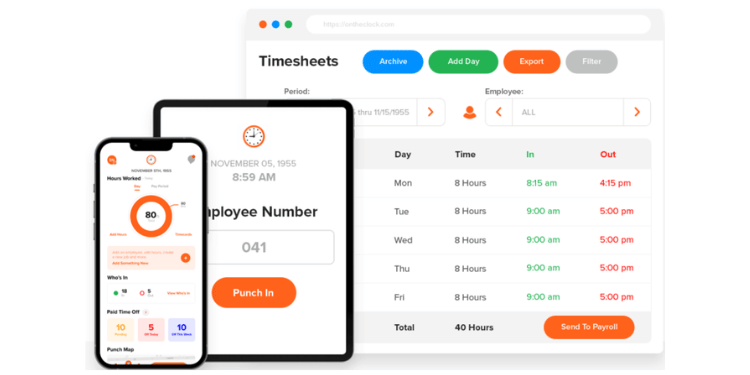
OnTheClock is a strong overall time clock option for retail, combining affordable time tracking and scheduling with optional full-service payroll. It tracks hours, builds schedules, and offers full-service payroll separately. For a store owner who wants clean hours and a paycheck without juggling three tools, it fits.
Why OnTheClock Is the Best Overall Solution
OnTheClock offers time tracking with integrations for payroll providers and optional full-service payroll inside the same system. Managers can review approved hours before processing payroll and reduce manual reentry.
Staff can clock in the way your store works. A shared tablet at the counter, a back-office kiosk, a fingerprint reader with compatible hardware, a PIN, or on their own phones. GPS and geofencing can help managers review device location and configure where punches are allowed. Schedules, PTO, and overtime alerts live in the same place.
Time tracking costs $5 per month plus $4 per employee per month, with core clock-in and scheduling tools included. A 10-person shop pays $45 per month for time tracking, before optional payroll.
What Makes It Different for Retail?
The difference is honest pricing paired with a full feature set. Many tools advertise a low per-user price, then charge extra for the kiosk, GPS, or second location. OnTheClock puts the core tools in the base price.
That matters most for the store owner who hates surprises on the invoice. Say you run two boutiques and add holiday staff in November. The time tracking fee rises by $4 per additional employee, before any optional services. No new site fee or upsell to unlock scheduling. The same dashboard covers both stores.
Payroll is the biggest difference. Add OnTheClock Payroll for $40 per month plus $6 per employee per month, with a one-time $250 implementation fee. This optional service supports direct deposit, tax filings, and year-end forms and can consolidate payroll with time tracking.
Key Features
Top Integrations
Pros
Cons
Pricing
- 30-day free trial; no credit card required at sign-up
- Time tracking: $5/month base plus $4 per employee/month
- Optional full-service payroll: $40/month base plus $6 per employee/month, with a one-time $250 implementation fee
Run your store's time and payroll in one place.
Start Tracking Time for Free
Homebase: Best Free Option for One Store
Available on: Web, iOS, Android
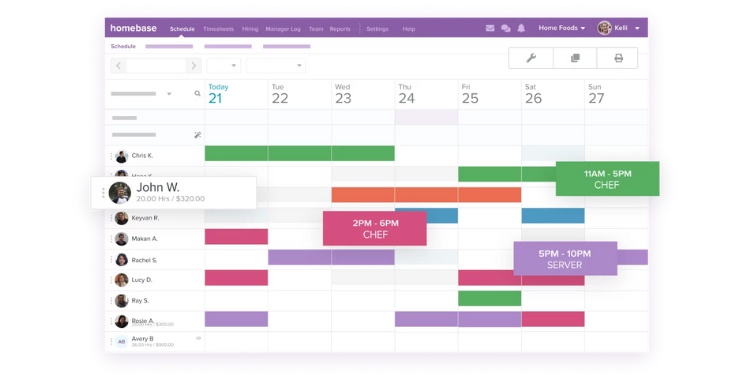
Homebase is the best free pick for a single store. Its free Basic plan covers core scheduling and time tracking at one location for up to 10 employees. If you run one shop and want to stop paying for a spreadsheet's worth of work, start here.
Why Homebase is best for one-store operations
The free tier is genuinely useful. Staff use supported clock-in methods, while photo verification and some advanced features depend on the plan. Hours land on a time sheet you approve in minutes. For a small, independent store, that covers the daily job.
Homebase also prices by location, not per user. The free Basic plan supports up to 10 employees at one location, while paid plans advertise unlimited employees per location for a flat location fee. So a busy store adding seasonal staff doesn't watch its bill climb with every hire. When you grow to a second store, paid plans add a multilocation dashboard.
Picture a single boutique with eight part-timers over the holidays. On a per-user tool, those extra hires raise your bill every time. On Homebase, the free plan covers the clock and schedule for a team of that size, and a paid plan stays at one flat price no matter how many people you add. For a one-store owner watching every dollar, that's the whole appeal.
Where it gets tricky is payroll. Homebase offers optional payroll for a $49 monthly base fee plus $6 per employee paid per month. Those charges increase the total subscription cost. Read the math before you switch payroll over.
Key Features
Top Integrations
Pros
Cons
Pricing
- Basic: Free for one location with up to 10 employees
- Essentials: $30/location/month; Plus: $70/location/month; All-in-One: $120/location/month
- Optional payroll: $49/month base plus $6 per employee paid/month

Buddy Punch: Best for Stopping Buddy Punching
Available on: Web, iOS, Android
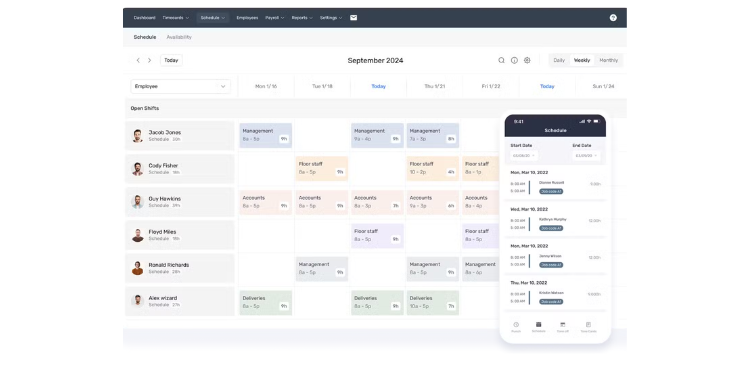
Buddy Punch is the best pick when time theft is your real problem. It offers multiple clock-in controls, including photo capture and supported kiosk verification, that can help deter buddy punching.
Why Buddy Punch Is Best for Stopping Buddy Punching
The name says it all. The platform offers GPS records and plan-dependent controls, including geofencing, kiosk punches, photo capture, and IP restrictions. These features can discourage unauthorized punches and provide information for manager review.
For a store losing money to padded hours, the math is simple. Verification features may help identify inaccurate punches. Setup and staff training requirements depend on the selected controls.
Think about a store where one tablet sits by the stockroom door. Before, a late employee could text a coworker to punch them in. Configured kiosk and photo-verification features can make unauthorized punching more difficult, but managers should still review suspicious activity.
The watch-out is the base fee. Every plan adds a $19 monthly base on top of the per-user price. For a tiny, three-person store, that base makes the per-head cost high. Advanced reporting may require its higher-tier plan.
Key Features
Top Integrations
Pros
Cons
Pricing
- 14-day free trial
- Starter: $5.99/user/month; Pro: $7.99/user/month; Advanced: $13.99/user/month, plus a $19 monthly base fee
- Optional payroll: $49/month base plus $8/employee/month; confirm checkout pricing

When I Work: Best for Schedule-Driven Stores
Available on: Web, iOS, Android
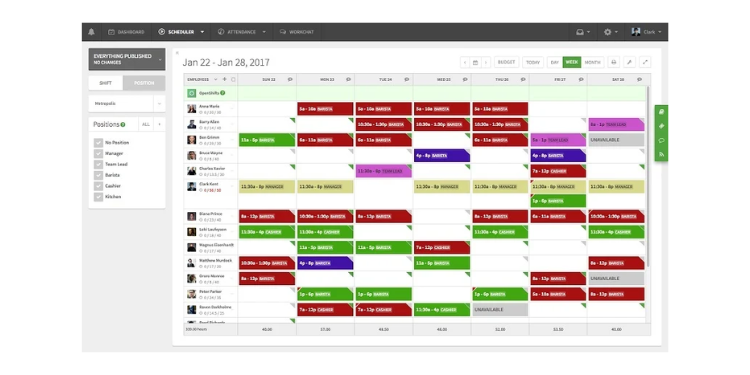
When I Work is best for stores where the schedule is the real headache. Its Essentials plan starts at $2.50 per user per month and is built around shifts. If you rebuild the schedule every week and chase shift swaps via text, this fixes that first.
Why When I Work Is Best for Schedule-Driven Stores
Scheduling is where it shines. Drag-and-drop shifts, easy swaps, and templates make a weekly retail rotation fast. Staff get reminders so they don't miss a shift, and a photo clock-in keeps punches honest. A multilocation dashboard lets a single manager monitor multiple stores, and labor sharing helps cover gaps when someone calls out. OnTheClock pairs its clock with shift scheduling, too, if you want both in one tool.
It connects to QuickBooks Online, so supported integrations can help transfer approved hours to payroll with less manual entry. For a 30-person store, the monthly cost stays low compared with heavier tools.
Say you run a clothing store where availability changes weekly and someone always calls out. When I Work lets staff swap shifts in the app, so employees can offer or accept swaps, helping managers resolve gaps without so many messages. The manager can see the whole week at a glance and receive an alert when a shift goes uncovered. For a schedule-first store, that daily friction is what disappears.
Scheduling, messaging, and time and attendance are advertised within its workforce-management plans. Confirm the final checkout cost with time and attendance enabled. There's also no built-in payroll; you push hours to a provider, like QuickBooks, instead. It schedules well, but it doesn't pay your team.
Key Features
Top Integrations
Pros
Cons
Pricing
- 14-day free trial, no free plan
- Essentials $2.50/user/month, Pro $5, Premium $8
- Confirm monthly checkout with time tracking enabled; no built-in payroll

Deputy: Best for Break and Overtime Compliance
Available on: Web, iOS, Android
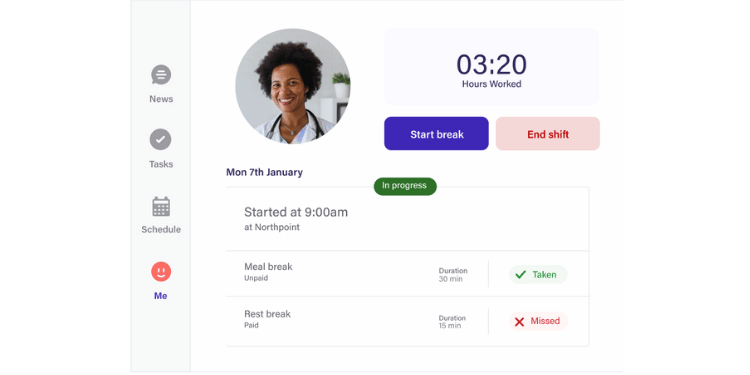
Deputy is best for stores that must follow strict break and overtime rules. It offers configurable controls and reports for overtime and breaks across locations. Employers remain responsible for setting the correct rules and reviewing records.
Why Deputy Is Best for Break and Overtime Compliance
Compliance is the standout. Deputy can flag potential break and overtime issues before payroll review when configured appropriately. Eligible plans provide biometric time clocking, and scheduling features help managers plan shifts around labor budgets.
It fits the operator who needs structure. Multiple locations, varied roles, and complex shift rules are where Deputy earns its keep.
Imagine a chain with stores in three states, each with its own break laws. Managers can configure location-specific rules and review overtime alerts, helping to identify potential errors across states. Those controls support compliance efforts but do not replace employer oversight.
The trade-offs are price and depth. Deputy can cost more than basic clocks, especially for smaller teams. It also has no built-in payroll, only integrations. For a single, small shop, it's more software than you need.
Key Features
Top Integrations
Pros
Cons
Pricing
- Lite: $5/user/month; Core: $6.50/user/month; Pro: $9/user/month
- $30 minimum monthly subscription charge.
- Payroll through integrations only

Square Shifts: Best for Stores Already on Square
Available on: Web, iOS, Android, Square POS
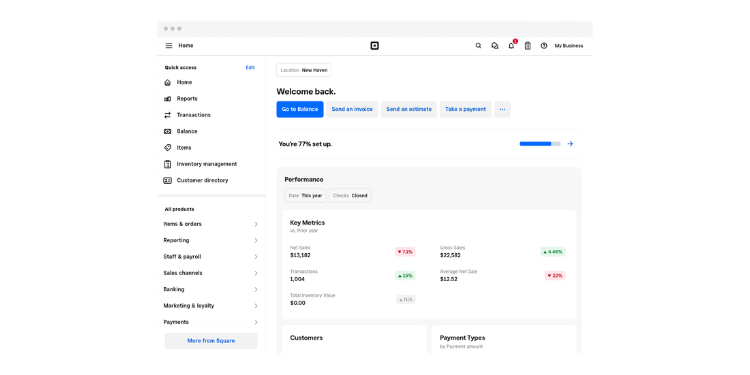
Square Shifts is the best pick if your store already runs on Square. The register you own becomes the time clock, and the hours feed directly into Square Payroll. If you already use compatible Square hardware, you may not need a separate clock-in device.
Why Square Shifts Is Best for Stores Already on Square
That tight fit is the standout. Staff clock in and out right on the Square register or in the Square Team app, and timecards are generated automatically. You can block early or unscheduled clock-ins and track breaks and overtime. Square Payroll integration can help transfer approved hours when the services are configured.
For a store already taking payments on Square, that's one less login and tool. Confirm the current Square Shifts plan packaging and free-tier eligibility before relying on a specific team size limit.
Picture a gift shop that already rings up every sale on a Square register. Staff just tap to clock in on the same screen they use all day, so there's nothing new to learn. At payday, those hours are already sitting in Square Payroll, ready to run. For a small Square store, integrated time tracking may mean less new hardware and training.
The limit is the ecosystem. Square Shifts is especially useful for stores already using Square. As a standalone time clock for a non-Square store, it's thin. Tip pooling, commissions, and full payroll cost extra. If you like Square for payments but want a stronger clock, OnTheClock also offers a time clock that works with Square.
Key Features
Top Integrations
Pros
Cons
Pricing
- Square Shifts: Pricing and availability depend on the selected Square subscription.
- Time tracking features may be included in eligible Square plans.
- Square Payroll is available separately; contact Square for current pricing.
Side-by-Side Comparison
| Tool | Best For | Pricing | Key Strengths | Top Integrations |
|---|---|---|---|---|
| OnTheClock | Best overall for retail | $5 base + $4/employee/month | Optional payroll, transparent time tracking, flexible punches | QuickBooks, Gusto, ADP |
| Homebase | Free for one store | Free up to 10 at one location; paid from $30/location/month | Real free tier, per-location pricing | QuickBooks, Gusto, POS |
| Buddy Punch | Stopping buddy punching | Starter $5.99/user/month + $19 base | Multiple punch controls; plan-specific features | QuickBooks, ADP, Gusto, Paychex |
| When I Work | Schedule-driven stores | From $2.50/user/month | Scheduling, shift swaps, published entry pricing | QuickBooks Online |
| Deputy | Break/overtime compliance | Lite $5/user/month; Core $6.50; Pro $9; $30 minimum | Configurable compliance controls, biometric options | QuickBooks, Gusto, Xero |
| Square Shifts | Stores already on Square | Current Square Shifts package pricing requires confirmation | POS-native clock, payroll sync | Square POS, Square Payroll |
Pricing and features reviewed October 2026 using available vendor information. Standard monthly rates are shown where verified; confirm feature limits, add-ons, and checkout totals.
What's the Best Time Clock Software for Retail?
The best option isn't the one with the longest feature list; it's the one that fits the store you actually run.
Start with one question: What are you really trying to solve? Many owners buy for features they might need someday, then end up with a heavy tool the team avoids. Focus on your current bottleneck instead.
-
Do staff share one tablet at the counter, and you suspect padded punches? Look at verification first.
-
Do you run more than one store and need one view? Multilocation is your filter.
-
Are you already on Square for payments? The POS-native option saves you the trouble of installing a tool.
-
Is the budget the tightest constraint, and you run one shop? Start free.
-
Do you want hours and payroll in one place? That points to built-in payroll.
Your answer points to your pick. The right time clock for your store removes the friction from the problem you face most often. When that friction is gone, the rest of payday gets easier.
What Is Retail Time Clock Software?
Retail time clock software records when staff start and end their shifts, then turns those punches into time sheets and pay. It replaces paper sheets and guesswork with automatic records.
Say a clothing boutique opens at 10 and closes at 8. A morning cashier taps in on the front-counter tablet, the closing crew taps out at night, and the software adds up every shift, flags anyone near overtime, and hands clean totals to payroll. No end-of-week math or squinting at a paper sheet. You can see how the main options stack up in our guide to the best time clocks for small businesses.
Who Needs Time Clock Software in Retail?
Any store that pays hourly staff needs it. A corner gift shop with three part-timers, a five-store clothing chain, holiday pop-up, and garden center that doubles its crew every spring: They all run on hourly shifts that have to be counted properly.
Owners and store managers feel the pain most. They approve the time sheets, catch the errors, and run payroll on Sunday nights. Once you pass a handful of hourly staff, or add a second location, hand-tracking starts costing real money in mistakes and lost time. A simple time clock can reduce manual work and help identify timecard inconsistencies.
Why Retail Stores Rely on Time Clock Software
Retail runs on hourly shifts, high turnover, and thin margins. Those three facts make accurate hours both hard and high-stakes.
A shared register tablet invites buddy punching. A new seasonal hire needs to clock in on day one without a training session. And labor is often a store's highest controllable cost, so a few padded minutes per shift, across a dozen employees, quietly eats your margins. Time clock software keeps the record honest, flags overtime before it surprises you at payroll, and gives you a clean trail if a worker ever disputes pay or a labor auditor asks for hours.
Key Features Retail Time Clock Software Should Have
Before you choose, make sure the tool covers the basics that retail actually needs.
-
Flexible clock-in: shared tablet, phone, and PIN options.
-
Verification: photo, facial verification, or geofencing to help deter buddy punching.
-
Overtime and break tracking: tools to support accurate records and compliance review.
-
Scheduling in the same tool: to catch punch problems early.
-
A clean payroll path: built-in payroll or a simple export.
-
Honest pricing: watch for add-on fees on kiosk mode, GPS, or extra stores.
How to Choose the Proper Time Clock Software for Your Store
Step 1: Name your biggest problem
Before comparing tools, decide what hurts most right now. Maybe it's buddy punching, maybe it's messy schedules, maybe it's payroll prep. Write it down. The right tool is the one that solves that one thing well, not the one with the most features. Starting here keeps you from overbuying a heavy system your team will resist.
Step 2: Match the clock-in method to your floor
Think about how staff will actually punch during a rush. A shared tablet at the counter may benefit from PINs or photo verification to help deter unauthorized punches. Team members using their own phones can use mobile clock-in with GPS. Many stores want both. Pick the tool that best fits your real setup so tracking feels invisible on a busy Saturday.
Step 3: Decide how much verification you need
Look at your shrink. If padded punches are costing you, lean toward facial recognition or geofencing. If your team is small and trusted, a PIN or photo may be plenty. More verification adds cost and a little friction, so match the control to the actual risk, not the worst case you can imagine.
Step 4: Check the compliance fit
Confirm the tool tracks overtime and breaks as required by your state. The Fair Labor Standards Act sets federal overtime rules, and many states add their own break laws. If you run stores in more than one state, look for configurable rules by location and verify that they support applicable state and local requirements. Mistakes can lead to costly wage claims.
Step 5: Map the payroll path
Decide whether you want hours to flow into payroll automatically or you're fine with an export. Optional payroll services, such as OnTheClock Payroll and Square Payroll, can reduce manual reentry when configured. If you already have a payroll provider you like, confirm the tool exports to it cleanly instead.
Step 6: Check the true price, not the headline
Add up the base fee; per-user cost; and any add-ons for kiosk mode, GPS, payroll, or extra locations. A low per-user price can hide a high total. Run the math for your team size and number of stores before you commit, because the surprise fees are the ones that show up in month two.
Step 7: Plan for multiple locations, even if you only have one now
If you might open a second store, ask how the tool charges for it. Some charge per location, some per user, and the gap broadens as you grow. Picking a tool that scales appropriately saves you a painful switch later.
Step 8: Test it with real staff
Use the free trial. Have a couple of employees clock in for a full week. If a new hire can punch comfortably, that is a good sign. If they struggle or skip it, keep looking. The best tool on paper is useless if your team avoids it.
Tips for Rolling Out Time Clock Software in Your Store
- Tell your team why first. Explain that accurate hours protect their pay, not just your costs. Explaining the purpose can make rollout and training easier.
- Start with one location. If you run several stores, pilot the tool in one first. Work out the kinks, build a simple guide, and then roll it out to the rest. A smooth first store makes the others easy.
- Set your rules before day one. Decide your overtime, break, and rounding rules in the software before staff starts punching. Clear rules from the start prevent payroll disputes later.
- Make a backup plan for downtime. Most of these tools need the internet to work. Decide ahead of time what staff do if the Wi-Fi drops, like a paper log for the hour, so an outage never costs someone their hours.
Frequently Asked Questions
Does retail time clock software work on a shared store tablet?
Yes. Most tools offer a kiosk mode that turns one tablet or iPad into a clock-in station for the whole team. Staff punch in with a PIN, a photo, or facial recognition, so one shared device works for everyone without each person needing the app.
How do you stop buddy punching in a store?
Use verification at clock-in. Photo capture, facial verification, PINs, and geofencing can help deter unauthorized clock-ins, but none guarantees prevention. Feature availability varies by provider and plan.
Is there free time clock software for a small store?
Yes. Homebase offers a free Basic plan for one location and up to 10 employees. Square Shifts also offers options for Square users, but confirm current free-tier limits and subscription terms. Payroll and additional locations may cost extra.
Can time clock software run payroll or just track hours?
Some platforms offer optional payroll services, including OnTheClock, Square, and Homebase. Others, including When I Work and Deputy, rely on payroll integrations or exports. Review how approved hours move between services.
Does it handle overtime and break rules automatically?
Many time clocks offer overtime calculations, break tracking, and configurable alerts. Employers must still maintain accurate records and comply with applicable federal, state, and local rules. Deputy offers tools that can help review multistate labor laws.
Will it work with my POS system?
Often, yes. Square Shifts is built right into the Square register. Homebase and others connect to common POS and payroll tools, so your hours and sales data align.
Ready to keep your store's hours honest and payroll clean?
Start a free, 30-day trial with no credit card required at sign-up. Month-to-month billing is standard.
Start Tracking Time for Free