

Jump to section
Try OnTheClock Free
Save time and make payroll effortless with our easy-to-use, affordable employee time tracking app.
Try It FreeRemote work gives your team more freedom, but it can also make tracking work hours harder. A few minutes here and there can slip through the cracks, leaving you with incomplete time records.
And when reported hours don’t match hours actually worked, you can end up paying for time your employees didn’t work or missing time they did. In a 2026 OnTheClock survey of 831 hourly workers, 43% said they had adjusted their reported hours, showing how easily manual time records can become unreliable.
Time tracking tools for remote workers can help solve this problem. They give you a clear record of hours worked, making it easier to keep payroll accurate and spot problems early. Before you roll one out, though, you’ll want to know which tools fit your team, budget, and workflow.
We’ll explore six options worth considering that make it easier to introduce time tracking to your employees.
What Time Tracking for Remote Workers Means
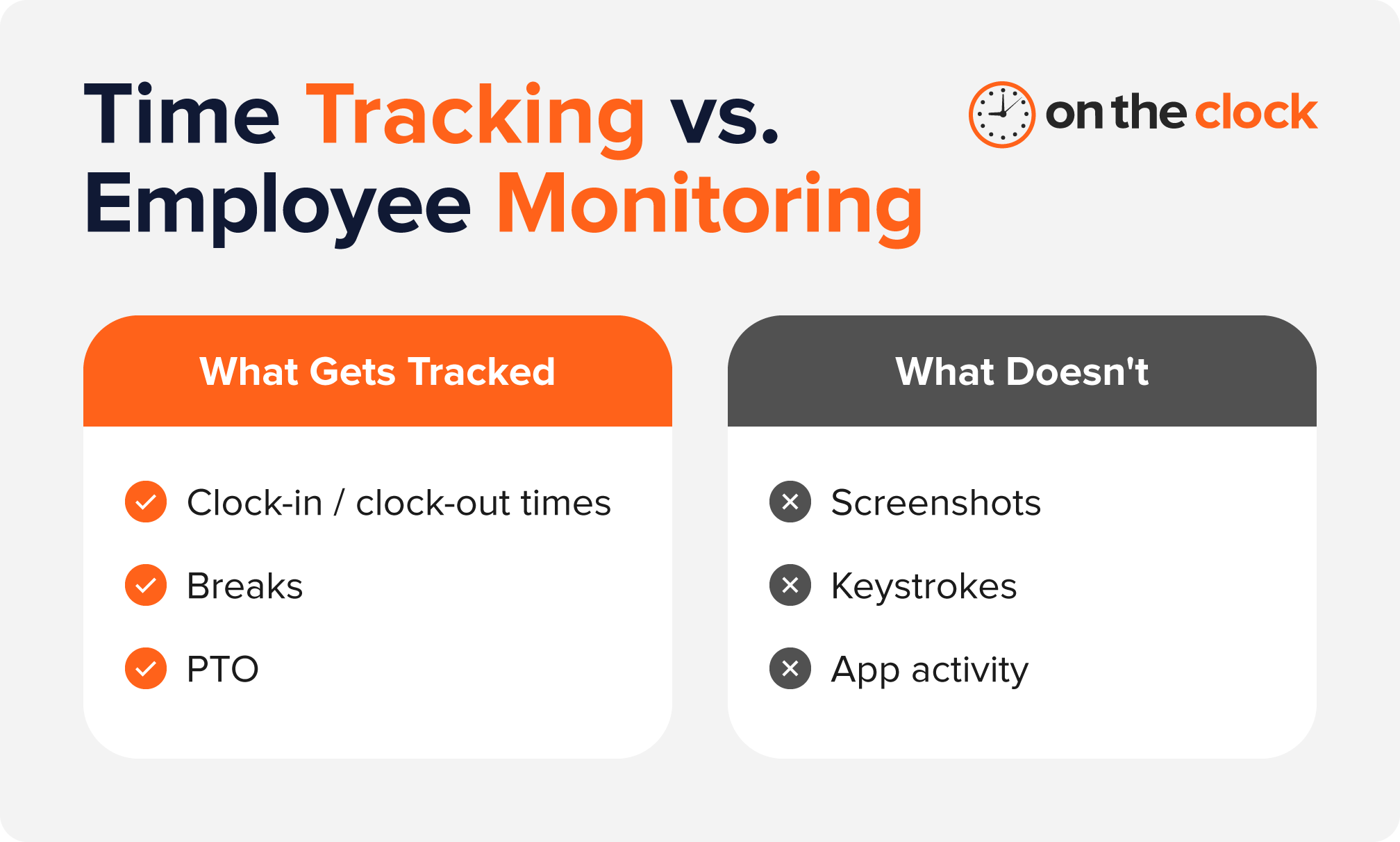
Time tracking for remote workers means recording the hours employees work so you can pay them accurately. Employees can clock in and out, record breaks, and keep reliable time records without needing to track everything they do during the workday.
The market is full of time tracking tools, but most of them are built for distributed, salaried teams. They focus more on tracking employee activity and less on tracking their time effectively. These tools may use screenshots or activity tracking to show how employees spend their time.
But a small business with hourly remote or hybrid staff usually needs a simpler way to record hours and run accurate payroll.
What to Look For in a Remote Time Tracking Tool
Remote workers need the same accurate time records as office-based employees. The difference is in how they clock in and how you verify their work location.
When finding your ideal match, focus on:
- Flexible clock-ins: Let employees clock in from a web browser, phone, or tablet without requiring a specific network or location
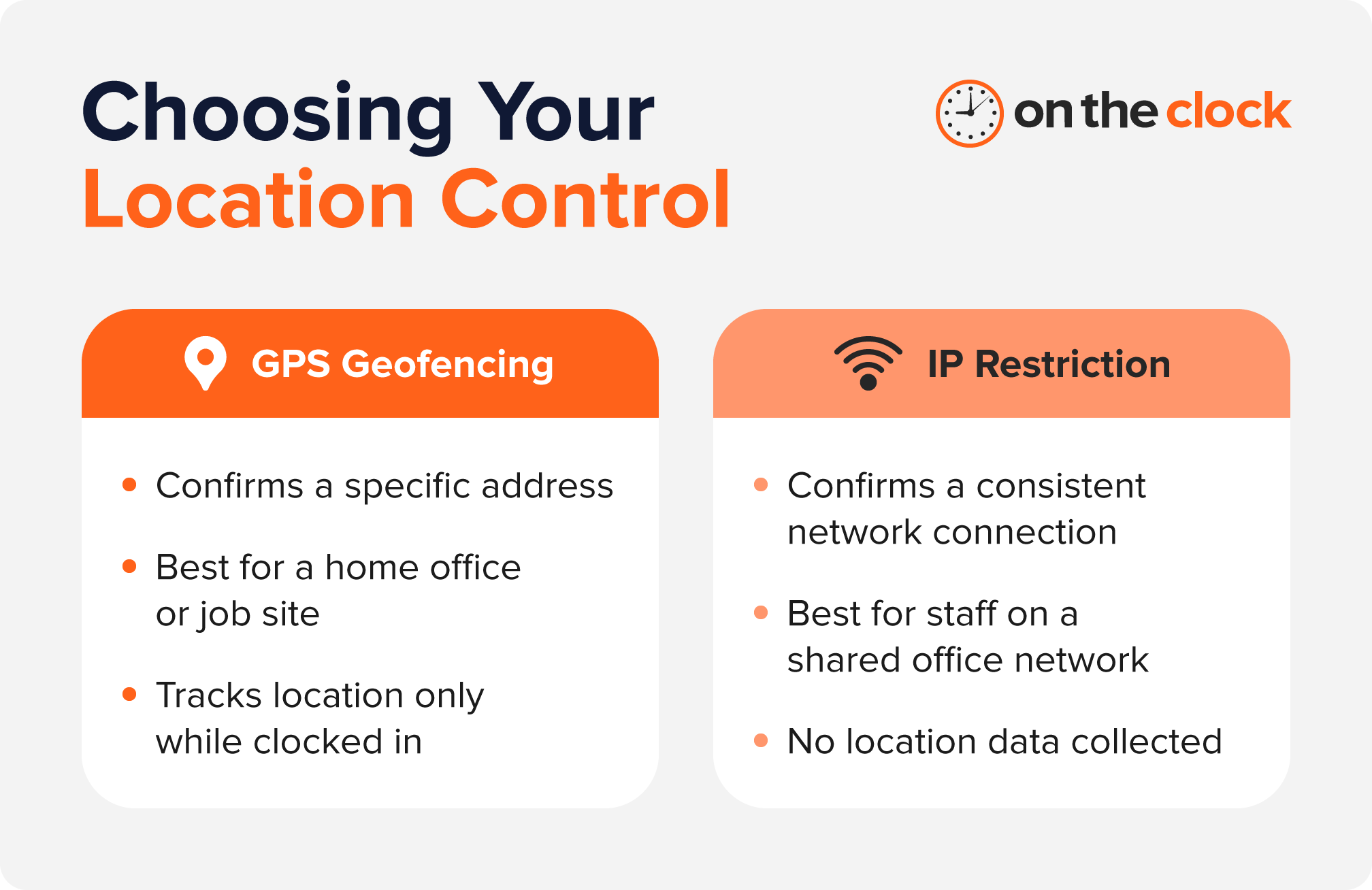
- Location controls: Choose GPS tracking to confirm clock-ins from an approved location, like a home office, or IP address restrictions to verify a consistent work location without tracking movement
- PTO and overtime tracking: Apply PTO and overtime rules consistently across remote and in-office employees
- Payroll integration: Send remote employees’ hours into the same payroll system as everyone else, keeping all time records together
- Shift scheduling: Create and publish employee schedules, notify employees about changes, and compare scheduled hours with actual hours worked
A good time tracking tool fits naturally into your team’s routine, gives your employees an easy way to clock in and out, and gives you accurate records for payroll.
6 Best Time Tracking Tools for Remote Workers
The six time tracking tools are either built around recording hours for payroll or monitoring employee activity. Knowing which side of that line your team needs can help you quickly narrow down the right option.
Here’s a sneak peek:
| Tool | Best for | Starting price/user/month (paid annually) | Payroll integration |
|---|---|---|---|
| OnTheClock | Hourly teams with employees working remotely, in the office, or across job sites | 30-day free trial; then $4 + $5 base fee | Third-party + native payroll add-on |
| Clockify | Teams and freelancers that want a free option | Free for up to five users; paid from $3.99 | Third-party |
| Toggl Track | Project-based teams billing by the hour | Free plan; paid plans from $9 | Third-party |
| Homebase | Shift-based teams that primarily work at a shared location or job site | Free for one location with up to 10 employees; paid from $24 | Native + third-party |
| Hubstaff | Teams that want activity-level visibility | 14-day free trial; then $4.99 | Third-party |
| Insightful | Fully remote salaried teams focused on productivity | 7-day free trial; paid from $8 | Third-party |

OnTheClock
- Best for: Businesses with hourly employees working remotely, in the office, or across job sites
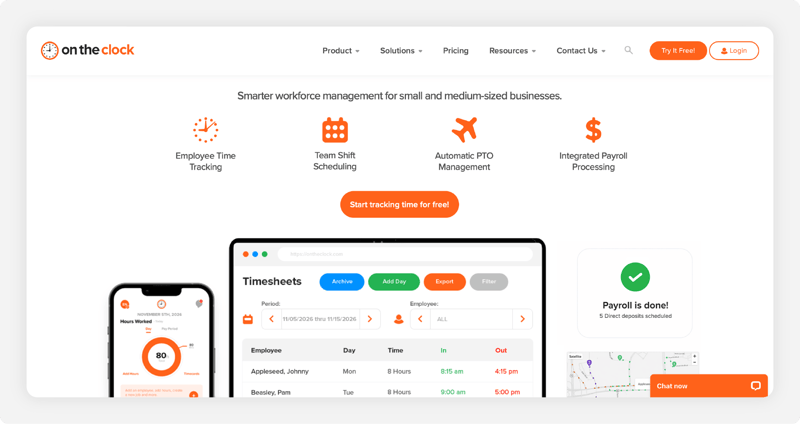
OnTheClock fits small businesses with hourly teams working from different locations. Employees can clock in through a web browser or other supported device, while managers can use IP address restrictions or GPS controls when they need to limit where employees can punch in. Scheduling, PTO, and payroll tools keep timekeeping connected across the team.
Key Features
Pricing
- Free for 30 days
- Paid plan: $4 per employee per month, plus a $5 monthly base fee
- Payroll (add-on): $6 per employee per month, plus $40 base fee per month
- Enterprise: Custom quotes
Pros and Cons
- Flexible clock-in options for remote, in-office, and field employees
- No GPS requirement for remote punches
- IP restrictions, GPS, and geofencing provide location controls when needed
- Scheduling, PTO, and payroll features in one platform
- 30-day free trial with no credit card required
- Payroll is an additional cost
- No employee activity monitoring
Why OnTheClock Is Different
What makes OnTheClock different is that it allows remote employees to record their hours through a web-based time clock. And businesses that want more control can use IP address restrictions or GPS and geofencing for location-specific punches. That gives you a way to verify where employees clock in without requiring location tracking for every punch.
“Support was the main deciding factor that sealed the deal for me. Cost and easy functionality were also an important part in choosing OnTheClock.”
“OnTheClock has given me my time back. It has helped me with employee retention, and the PTO and time-off feature has been a huge piece that has helped me with my business. The employees love that they can see what they have accumulated in regard to paid time off.”

Clockify
- Best for: Teams and freelancers that want a free option and don’t need built-in payroll
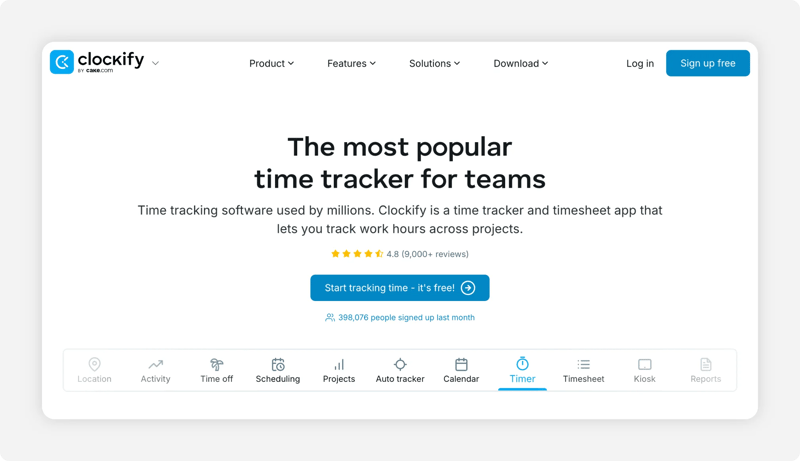
Clockify has a free plan that supports up to five users with unlimited time tracking. It’s a good option for freelancers and project-based teams that need to track hours against specific projects. You can start timers, enter hours manually, and review time through time sheets and reports.
Key Features
Pricing
- Free: For up to five users with unlimited time tracking
- Basic: $3.99 per seat per month
- Standard: $5.49 per seat per month
- Pro: $7.99 per seat per month
- Enterprise: $11.99 per seat per month
Pros and Cons
- Free plan supports up to five users
- Unlimited time tracking on the free plan
- Supports web, desktop, and mobile time tracking
- Project-based time tracking
- No built-in payroll
- Some timekeeping features require a paid plan
- QuickBooks integration starts with the Standard plan
- Can be more than you need if payroll-focused timekeeping is the priority
Clockify makes sense when keeping costs low is the priority and your team already has a separate payroll system. But if you need payroll built into your time clock, Clockify alternatives like OnTheClock may be a better fit.

Toggl Track
- Best for: Project-based teams that bill clients by the hour rather than running payroll
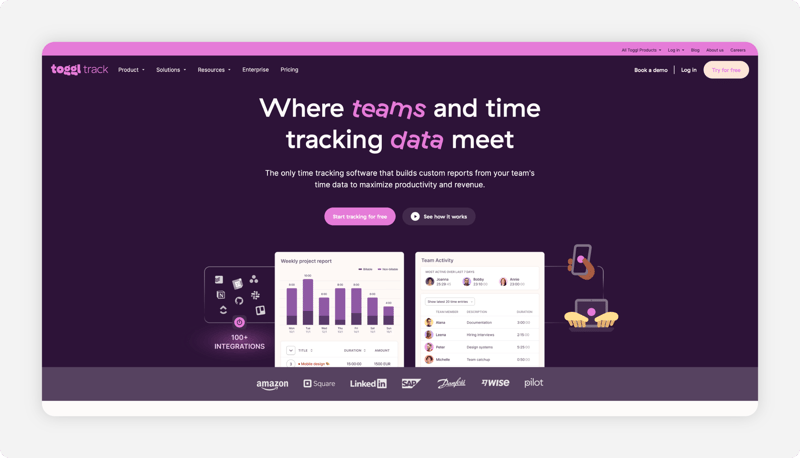
Toggl Track is popular with freelancers and agencies that need to see how much time they spend on client work. You can track time from the web, desktop, or mobile app, then organize hours by project and client. Toggl Track is worth considering for project-based teams, but if your priority is payroll automation, you may need a separate payroll system to handle employee pay.
Key Features
Pricing
- Free: For a limited number of users
- Starter: $9 per user per month
- Premium: $16 per user per month
- Enterprise: Custom
Pros and Cons
- Free plan available
- Strong project and client time tracking
- Supports web, desktop, and mobile tracking
- Useful reporting for billable work
- No built-in payroll
- Payroll requires a separate system
- Better suited to project billing than hourly payroll
- Some advanced features require a paid plan

Homebase
- Best for: Businesses that need scheduling alongside time tracking for a mostly in-person or hybrid team
.png?width=800&height=459&name=homebase-homepage-screenshot%20(2).png)
Homebase combines scheduling and time tracking on a single platform, making it a natural fit for shift-based businesses. It’s especially useful when your employees work from a shared location and their schedules change often. Homebase also connects the schedule with the time clock, so your employees can clock in against their assigned shifts.
Key Features
Pricing
- Basic: Free (up to 10 employees)
- Essentials: $24 per location per month
- Plus: $56 per location per month
- All-in-One: $96 per location per month
Pros and Cons
- Free plan supports one location with up to 10 employees
- Combines scheduling and time tracking
- Connects employee schedules with the time clock
- Payroll available through an add-on
- More focused on location-based, shift-based teams
- Less flexible for fully remote teams
- Some features require a paid plan
Homebase works well for businesses centered around a fixed location, while a more mobile workforce may need stronger job or location tracking. For remote teams with hourly employees, Homebase alternatives like OnTheClock can provide more flexibility around how and where employees clock in.

Hubstaff
- Best for: Teams that want activity-level insight into remote work alongside time tracking
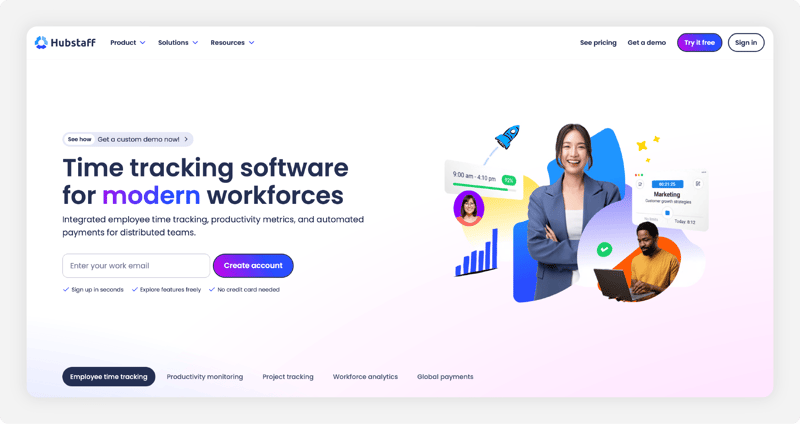
Hubstaff takes time tracking a step further with optional productivity monitoring. You can track activity levels and app or URL usage, and you can enable screenshots when you need more visibility. That makes Hubstaff a better fit for teams that want to see how work time is being spent, rather than only recording hours for payroll.
Key Features
Pricing
- Starter: $4.99 per seat per month
- Grow: $7.50 per seat per month
- Team: $10 per seat per month
- Enterprise: Custom
Pros and Cons
- Combines time tracking with productivity monitoring
- App, URL, and screenshot tracking provide detailed visibility
- Supports payroll and payment integrations
- Desktop, web, and mobile time tracking
- Activity monitoring may feel intrusive to employees
- More monitoring than some hourly teams need
- Payroll isn't built into the lower-tier plans
- Some features require higher-tier plans
If you’re comparing Hubstaff vs. OnTheClock, consider what you want your time clock to do. Go for Hubstaff when activity visibility is part of the goal. OnTheClock is a better fit when your priority is recording accurate hours for hourly employees without monitoring their computer activity.

Insightful
- Best for: Companies managing fully remote, salaried teams that need visibility into productivity
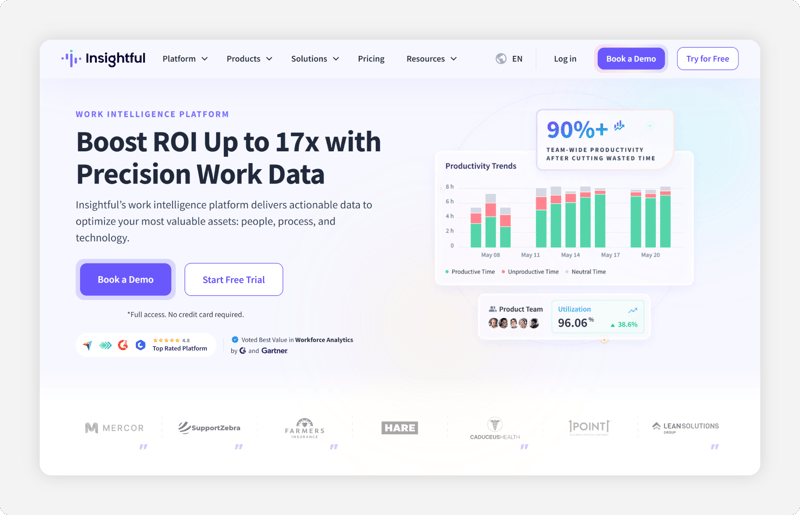
Insightful is built around remote workforce monitoring, so it goes well beyond recording hours. You can see employee activity, app and website usage, and screenshots to understand how work time is being spent. That makes it a better match for teams focused on productivity and accountability than for businesses that simply need accurate hours for payroll.
Key Features
Pricing
- Workforce Analytics: $8 per seat per month
- Workflow Optimization: $12 per seat per month
- Combo Plan: $16 per seat per month
- Enterprise: Custom
Pros and Cons
- Combines time tracking with workforce monitoring
- Tracks apps, websites, and employee activity
- Supports automatic and manual time entries
- Offers payroll integrations
- May provide more monitoring than hourly teams need
- Screenshots and activity tracking may feel intrusive
- Better suited to productivity monitoring than payroll-focused timekeeping
- Some features require higher-tier plans
How to Manage Remote Employee Time Tracking Without It Feeling Like Surveillance
Remote time tracking works best when your employees know exactly what the system records and why. A clear policy can make GPS time clocks and other time tracking tools feel like a routine part of work rather than a source of suspicion.
Here are a few ways to manage remote employee time tracking without any hassle:
- Explain what you track: Tell employees you’re recording clock-in and clock-out times, and be clear about what you don’t track, such as activity, screenshots, or keystrokes
- Match location controls to your needs: Use geofencing when employees need to clock in from an approved address, such as a home office; choose IP restrictions or a web-based clock-in when you need less location detail
- Apply the same rules: Use the same time tracking process for remote, hybrid, and in-office employees so remote staff don’t feel singled out
- Communicate when tracking happens: If you use GPS, make it clear that location tracking only occurs while an employee is on the clock, not during lunch breaks or after clocking out
- Give your employees a simple way to use the system: Make clocking in and out easy, so time tracking becomes part of the normal workday rather than another task to remember
Bonus tip:
Give your employees a way to flag timekeeping errors. Remote workers may forget to clock in, miss a break, or notice an incorrect time entry later. A simple process for correcting those records can save you from chasing down small errors when payroll is due.
Track Remote Hours Accurately, Without the Monitoring Software
Time tracking for remote workers should give you an accurate record of hours worked so you can pay your employees correctly. For hourly teams, you can keep timekeeping focused on work hours without adding software that watches employee activity.
And if you need a simple way to track hours across your remote, hybrid, or in-office team, give your employees OnTheClock’s online time clock. This way, you can help them clock in easily while keeping time records in one place.
Start your free 30-day trial today to track remote employee hours accurately and simplify payroll.
Time Tracking for Remote Workers FAQ
Remote time tracking can mean different things depending on how your team works and what you need to measure. These FAQs cover the basics so you can choose the right time tracking software for remote teams.
What Is Remote Employee Time Tracking?
Remote employee time tracking is the process of recording when employees start and stop work so you can keep accurate records of hours worked. It can also include tools for tracking breaks, overtime, and PTO.
Do I Need GPS Tracking for Remote Employees?
No. GPS tracking can help confirm employees are clocking in from an approved location, but IP restrictions or web-based clock-ins may work if you don’t need precise location data.
What’s the Difference Between Time Tracking and Employee Monitoring Software?
Time tracking software records work hours for purposes such as accurate pay and payroll. Employee monitoring software can track activity, screenshots, app usage, or keystrokes to provide insight into how employees spend their workday.
Can Remote and In-Office Employees Use the Same Time Clock System?
Yes. Time tracking software for remote teams can support employees working from different locations through web, mobile, or kiosk clock-ins. A single system can keep time records consistent across your workforce.
Is There a Free Time Tracking Option for a Small Remote Team?
Yes. Some providers offer free remote employee time tracking software with limits on users or features. OnTheClock, for example, offers a 30-day free trial. There are also options like Clockify that offer a free plan.